useState Hook
Understanding React useState: From a Button Click to a Working Form
You are building a workshop registration page.
Visitors choose how many seats they need, enter their details, and review their registration.
The first button takes only a few lines of code. Then something unexpected happens.
You request three increments, but the number increases only once. You update the email field, and the other fields disappear. You print a value immediately after updating it, and the console shows the old value.
These behaviors become predictable once you understand what useState actually provides:
React-managed memory, a value for the current render, and a way to request the next value.
Let’s build the registration page one requirement at a time.
1. The page needs to remember a number
Our first requirement is a seat counter.
A component is a function that describes part of the interface. We might initially try an ordinary variable:
function SeatCounter() {
  let seats = 1;

  function addSeat() {
    seats += 1;
  }

  return (
    <button type="button"
      Seats: {seats}
    </button>
  );
}
Clicking changes the variable, but it does not tell React to render again.
If React calls the component again later, the declaration also starts over with seats = 1.
We need two things:
A value React remembers between renders.
A way to tell React that the value should change.
useState provides both.
import { useState } from "react";

function SeatCounter() {
  const [seats, setSeats] = useState(1);

  function addSeat() {
    setSeats(previous => previous + 1);
  }

  return (
    <button type="button"
      Seats: {seats}
    </button>
  );
}
useState is a Hook: a function that connects a function component to a React feature.
It returns an array containing:
Value | Meaning |
|---|---|
| The state value for this render |
| A function that requests an update |
The argument 1 supplies the initial value.
The square-bracket syntax extracts those two array values into variables. This JavaScript feature is called array destructuring.
React remembers the state for this component between renders.
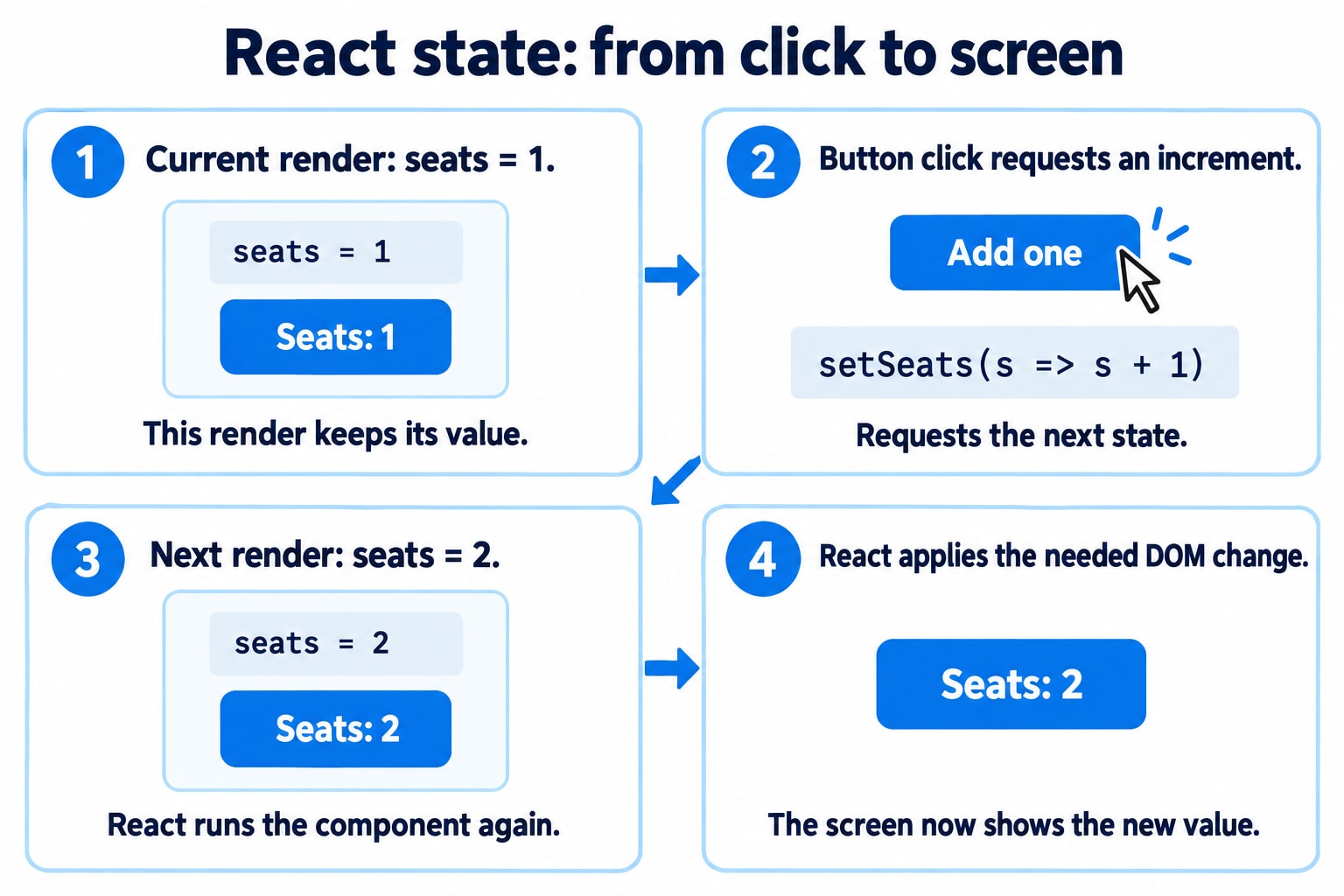
2. Follow the first click
The interface displays:
Seats: 1The visitor clicks the button, which calls:
setSeats(previous => previous + 1);React processes the update and renders the component with the next state. The component now describes:
Seats: 2React applies any necessary changes to the browser DOM—the browser’s representation of the page.
Notice the qualification: any necessary changes.
A state setter does not directly edit a DOM node, and calling one does not guarantee a visible DOM change. React calculates the next interface before committing changes.
3. Why does the console still show the old value?
You add a log:
function addSeat() {
  setSeats(previous => previous + 1);
  console.log(seats);
}
When the current value is 1, the log prints 1.
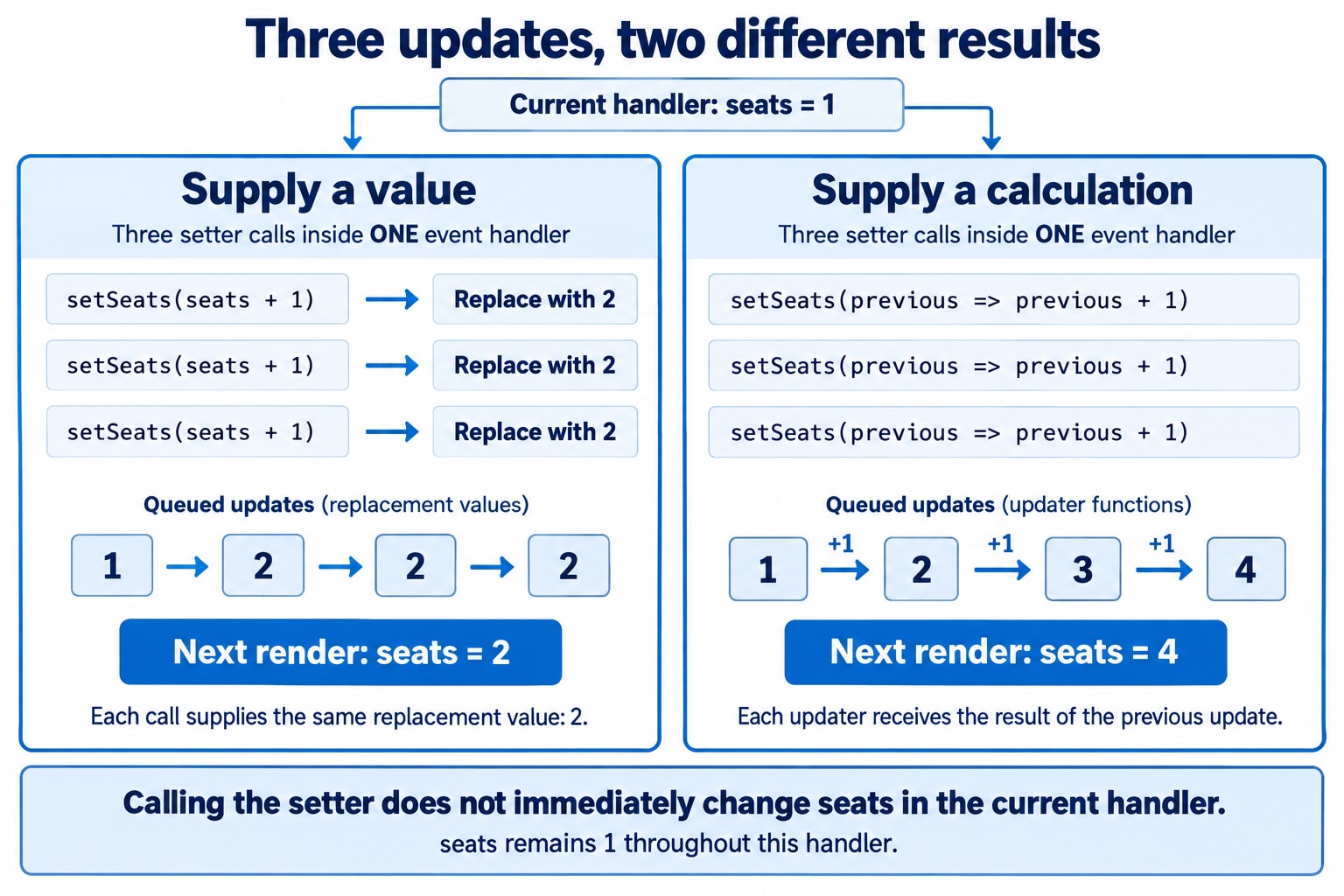
The setter requests a future state. It does not rewrite the seats variable inside the handler that is already running.
Each render supplies a snapshot of state. The event handlers created during that render see that snapshot.
This remains true inside delayed callbacks:
function showSelectedSeats() {
  setTimeout(() => {
    alert(`You selected ${seats} seats.`);
  }, 2000);
}
The callback uses the seats value from the render that created that handler. Selecting more seats before the alert appears does not automatically change that captured value.
Also, a setter does not return a Promise that resolves after rendering. Writing await setSeats(...) is not a way to wait for the new UI.
4. The “Add three seats” button adds only one
The workshop offers a quick button for group registrations:
function addThreeSeats() {
  setSeats(seats + 1);
  setSeats(seats + 1);
  setSeats(seats + 1);
}
Suppose the current render has seats = 1.
All three expressions use that same value:
setSeats(2);
setSeats(2);
setSeats(2);
We have requested the same replacement value three times.
The result is 2, not 4.
A direct update is not inherently wrong. It means: make the next state this value.
For example, resetting to one seat is naturally expressed as:
setSeats(1);But our group button means: increase the pending value three times.
That requires updater functions:
function addThreeSeats() {
  setSeats(previous => previous + 1);
  setSeats(previous => previous + 1);
  setSeats(previous => previous + 1);
}
React processes the queued calculations in order:
Queued calculation | Receives | Returns |
|---|---|---|
First increment | 1 | 2 |
Second increment | 2 | 3 |
Third increment | 3 | 4 |
The callback receives the pending state, including the result of earlier queued updates.
For a button that simply adds three, one update is enough:
setSeats(previous => previous + 3);Which form should you choose?
Intention | Example |
|---|---|
Set a specific value |
|
Use a new value supplied by an event |
|
Calculate from pending previous state |
|
A direct increment often works correctly for a single ordinary click. Using the updater form is a useful convention when the calculation depends on previous state, especially when updates may be queued together.
An updater only provides the pending value of that state variable. It does not automatically refresh other props or variables captured by the callback.
5. Batching groups work; it does not change the snapshot
React can group several state updates before rendering. This is called batching.
For example:
function resetRegistration() {
  setSeats(1);
  setName("");
  setEmail("");
}
React can process these updates together instead of displaying an intermediate screen after each setter.
Modern React’s automatic batching also covers updates in callbacks such as timeouts and Promise handlers when using modern roots. It is not limited to React event handlers.
However, “everything in the same event loop is one batch” is not a reliable rule. Separate intentional interactions, such as separate clicks, are handled distinctly.
Batching also does not explain away the snapshot model. The variable inside an existing handler remains the value from its render.
6. The visitor enters their name
Now our page needs a text field.
function NameField() {
  const [name, setName] = useState("");

  return (
    <label>
      Full name
      <input
        type="text"
        value={name} => setName(event.target.value)}
      />
    </label>
  );
}
This is a controlled input: React state supplies its current value.
The interaction follows an explicit cycle:
value={name}supplies the displayed value.The visitor types.
onChangereads the new text.setNamerequests an update.React renders with the new value.
This is sometimes loosely called “two-way binding,” but React is using two explicit pieces: a value passed down and an event handler requesting an update.
Keep a controlled text input’s value a string. Starting with "" avoids switching from an uncontrolled input to a controlled one later.
For a checkbox, use checked and read event.target.checked, rather than treating its value like a text field.
7. Three fields become one form
Our registration now needs:
First name.
Last name.
Email.
Separate state variables are perfectly valid:
const [firstName, setFirstName] = useState("");
const [lastName, setLastName] = useState("");
const [email, setEmail] = useState("");
We can also group these related fields into an object:
const [formData, setFormData] = useState({
  firstName: "",
  lastName: "",
  email: "",
});
Grouping is a design choice. An object is not automatically more scalable, and multiple Hooks are not automatically a problem.
Here, an object gives us a convenient registration record and lets similar text fields share a handler.
The update that accidentally deletes two fields
This setter replaces the entire stored object:
setFormData({
  firstName: "Asha",
});
The next state no longer contains lastName or email.
Unlike class setState, the setter returned by useState does not merge object fields for us.
Preserve the fields explicitly:
setFormData(previous => ({
  ...previous,
  firstName: "Asha",
}));
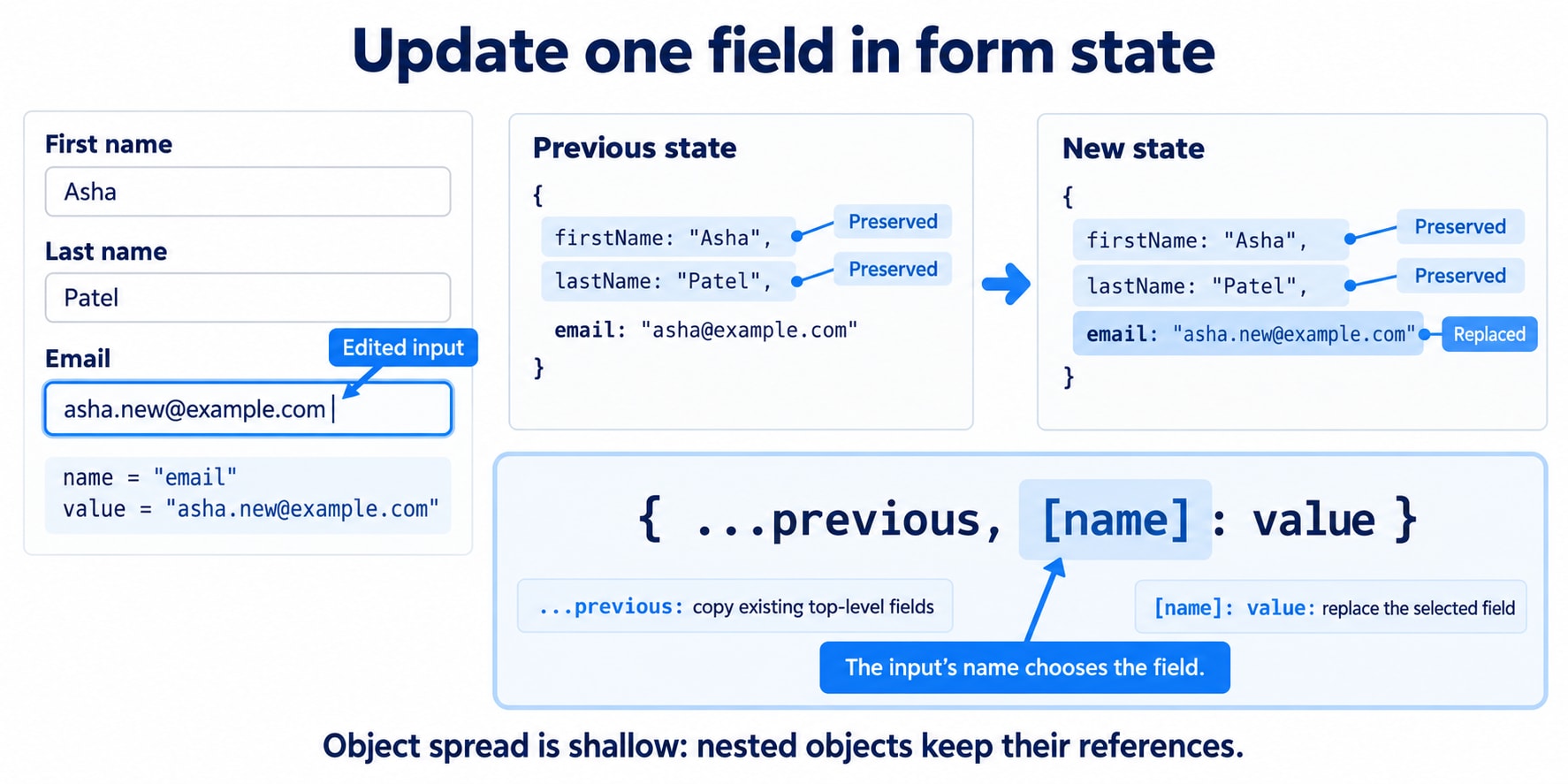
The spread syntax copies the previous top-level properties into a new object. The following property replaces firstName.
Do not mutate the existing state object:
// Avoid this.
formData.firstName = "Asha";
setFormData(formData);
That changes a previous snapshot and passes back the same reference.
8. One handler can update several text fields
Give each input a name matching its state property:
<input
  name="firstName"
  value={formData.firstName}
/>
The handler reads that name and the new value:
function handleChange(event) {
  const { name, value } = event.target;

  setFormData(previous => ({
    ...previous,
    [name]: value,
  }));
}
[name] is a computed property name. JavaScript uses the variable’s value as the property key.
If name is "email", the update behaves like:
setFormData(previous => ({
  ...previous,
  email: value,
}));
This handler is appropriate for the text fields in our form.
Different controls may require different handling. Checkboxes provide booleans through checked, and number inputs still expose a string through value. A generic handler should reflect the actual field types.
9. The complete registration example
This example validates required fields through the browser and displays a local submission preview. It does not send a request to a server.
import { useState } from "react";

const emptyForm = {
  firstName: "",
  lastName: "",
  email: "",
};

export default function RegistrationForm() {
  const [formData, setFormData] = useState(emptyForm);
  const [seats, setSeats] = useState(1);
  const [submittedRegistration, setSubmittedRegistration] =
    useState(null);

  function handleChange(event) {
    const { name, value } = event.target;

    setFormData(previous => ({
      ...previous,
      [name]: value,
    }));
  }

  function handleSubmit(event) {
    event.preventDefault();

    setSubmittedRegistration({
      ...formData,
      seats,
    });
  }

  function resetForm() {
    setFormData({ ...emptyForm });
    setSeats(1);
    setSubmittedRegistration(null);
  }

  const fullName = [
    formData.firstName,
    formData.lastName,
  ]
    .filter(Boolean)
    .join(" ");

  return (
    <section>
      <h1>Workshop registration</h1>

      <form
        <label>
          First name
          <input
            name="firstName"
            autoComplete="given-name"
            value={formData.firstName}
            required
          />
        </label>

        <label>
          Last name
          <input
            name="lastName"
            autoComplete="family-name"
            value={formData.lastName}
            required
          />
        </label>

        <label>
          Email
          <input
            name="email"
            type="email"
            autoComplete="email"
            value={formData.email}
            required
          />
        </label>

        <fieldset>
          <legend>Seats</legend>

          <p>{seats} selected</p>

          <button
            type="button"
            disabled={seats <= 1} =>
              setSeats(previous => Math.max(1, previous - 1))
            }
          >
            Remove one
          </button>

          <button
            type="button" => setSeats(previous => previous + 1)}
          >
            Add one
          </button>

          <button
            type="button" => setSeats(previous => previous + 3)}
          >
            Add three
          </button>
        </fieldset>

        <p>
          Registering: {fullName || "Enter your name"}
        </p>

        <button type="submit">Review registration</button>

        <button type="button"
          Reset
        </button>
      </form>

      {submittedRegistration && (
        <section aria-label="Submitted registration preview">
          <h2>Last submitted details</h2>
          <p>
            {submittedRegistration.firstName}{" "}
            {submittedRegistration.lastName}
          </p>
          <p>{submittedRegistration.email}</p>
          <p>Seats: {submittedRegistration.seats}</p>
        </section>
      )}
    </section>
  );
}
Two different kinds of data appear here.
fullName is calculated from the current form fields. It does not need separate state.
submittedRegistration deliberately records the last submitted details. It can differ from the currently edited form, so remembering it has a purpose.
State should represent information you need to retain, rather than every value you can calculate.
10. A new outer object is not always enough
Suppose the form gains a nested address:
const [formData, setFormData] = useState({
  firstName: "",
  address: {
    city: "",
    postcode: "",
  },
});
Object spread is shallow. This still mutates the existing address:
const nextForm = { ...formData };
nextForm.address.city = "Delhi";
Both outer objects still refer to the same nested address object.
Copy each changed level:
setFormData(previous => ({
  ...previous,
  address: {
    ...previous.address,
    city: "Delhi",
  },
}));
For array state, the same principle applies: create the next array and copy any existing item you need to change.
Immutability preserves earlier snapshots and makes changes visible through new references.
11. React can skip an unchanged state value
Suppose seats is already 1:
setSeats(1);React compares the next state with the current state using Object.is. An equal value lets React skip unnecessary rendering work, although it may still call the component in some cases before deciding to bail out.
For objects, reference identity matters. A newly created object is different even if its fields contain the same values.
This explains why neither of these claims is reliable:
“Every setter call causes a visible update.”
“React deeply compares the fields of my state object.”
12. Initialization and persistence have limits
The workshop page might receive a suggested starting quantity:
function SeatCounter({ initialSeats }) {
  const [seats, setSeats] = useState(initialSeats);

  // ...
}
Later changes to initialSeats do not automatically overwrite the remembered state. The argument is used for initialization.
For an expensive initial calculation, pass an initializer function:
const [formData, setFormData] = useState(() => {
  return createInitialForm();
});
This avoids calling createInitialForm() merely to evaluate the argument on every render.
Initializers and updater functions must be pure: they calculate and return a value without performing external side effects. Development Strict Mode may call them twice to help reveal impurities.
Remembered across renders does not mean permanently stored
useState does not automatically save data to a database or browser storage.
State is associated with a component’s identity in the React tree. Removing that component or changing its identity can reset the state. Refreshing the page also starts a new application session unless some separate persistence mechanism restores the data.
A “saved registration” in local component state is therefore not yet a registration saved on a server.
13. Keep Hook calls predictable
Call useState at the top level of a function component or custom Hook.
Avoid calling it conditionally:
// Incorrect
if (showEmail) {
  const [email, setEmail] = useState("");
}
Make the Hook call consistently, then choose what to render:
const [email, setEmail] = useState("");

if (!showEmail) {
  return null;
}
React relies on a consistent order of ordinary Hook calls to associate them with their stored data.
Also, pass event handlers rather than invoking them while rendering:
// Runs when clicked.
<button => setSeats(previous => previous + 1)}>
  Add one
</button>
Unconditionally calling a setter while rendering can cause a render loop.
What the registration page taught us
The seat counter introduced remembered data. The group button exposed the update queue. The text fields made state control visible. The shared form handler revealed that object state is replaced, not merged.
These distinctions give us a practical guide:
Situation | Useful approach |
|---|---|
Set a known next value | Pass that value to the setter |
Calculate from pending state | Pass an updater function |
Edit one field in an object | Create a new object and preserve the other fields |
Display a calculated value | Derive it during rendering |
Initialize expensive state | Pass a pure initializer |
Coordinate increasingly complex transitions | Consider organizing updates with |
Preserve data across page reloads | Use a separate persistence mechanism |
The central idea is straightforward:
A render reads a state snapshot. A setter requests what should come next. React processes those requests and calculates the next interface.
Once that distinction is clear, the old console value, the single increment, and the disappearing form fields all have understandable causes.