Rendering Lists – map, filter & reduce
Rendering Lists and Conditional UI in React: From Data to a Working Catalogue
A product catalogue looks straightforward: display some products, add a category filter, and show their prices.
Then real data arrives.
One product is free. Another has no seller address. A filter returns no matches. A request is still loading, but the page already says “No products found.”
The interface needs to do more than display data. It needs to interpret that data correctly and explain what is happening to the user.
React lets us express these decisions using ordinary JavaScript. Array methods such as map(), filter(), and reduce() help us prepare what to display. Conditions and operators such as &&, ||, ?., and ?? help us decide what appears.
The syntax is short, but the choices matter. Using the wrong fallback can hide a valid price of zero. Choosing the wrong key can attach a user’s input to the wrong product.
We’ll build a product catalogue step by step, introducing each concept when a new requirement makes it useful. Along the way, we’ll examine why common mistakes happen and how to make the interface behave predictably.
Let’s begin with the data.
1. The catalogue arrives as data
Suppose our application receives these products:
const products = [
  { id: "p1", name: "Keyboard", price: 20, category: "Electronics" },
  { id: "p2", name: "T-Shirt", price: 30, category: "Clothing" },
  { id: "p3", name: "Mouse", price: 15, category: "Electronics" },
  { id: "p4", name: "Cap", price: 25, category: "Clothing" },
  { id: "p5", name: "Headphones", price: 50, category: "Electronics" },
  { id: "p6", name: "Webcam", price: 40, category: "Electronics" },
];
This is an ordinary JavaScript array. Each object describes one product.
We could manually write six list items, but then our markup would need changing every time a product was added or removed.
Instead, we can describe how to display one product and apply that description to every item.
That is where map() fits.
2. From product objects to React elements
JavaScript’s map() method creates a new array using the values returned by a function.
For example:
const productNames = products.map(product => product.name);The result is an array of names:
["Keyboard", "T-Shirt", "Mouse", "Cap", "Headphones", "Webcam"]The function supplied to map() is called a callback. Here, it receives a product and returns its name.
We can return a React element instead:
function ProductList({ products }) {
  return (
    <ul>
      {products.map(product => (
        <li key={product.id}>
          {product.name} — ${product.price}
        </li>
      ))}
    </ul>
  );
}
products is a prop: an input passed into the component by its parent.
Inside JSX, curly braces let us evaluate a JavaScript expression. Here, that expression produces an array of React elements.
map() creates the descriptions. React handles rendering them. Calling map() itself does not insert elements into the browser DOM.
A small syntax mistake can erase the entire list
These two callbacks behave differently:
// Returns the element.
products.map(product => (
  <li key={product.id}>{product.name}</li>
));// Returns undefined.
products.map(product => {
<li key={product.id}>{product.name}</li>;
});Parentheses surround an expression that the arrow function returns automatically.
Curly braces create a function body, so an explicit return is required:
products.map(product => {
  return <li key={product.id}>{product.name}</li>;
});
If your array contains data but the page shows no rows, check the callback’s return value.
3. A row needs an identity
Our list includes:
key={product.id}When a list changes, React matches its new items with the previously rendered items to determine which existing parts of the interface can be reused.
A key helps identify a list item among its siblings across renders. It should remain stable for the same item.
When extracting a row into a component, put the key on the element directly returned by map():
function ProductRow({ product }) {
  return <li>{product.name}</li>;
}

function ProductList({ products }) {
  return (
    <ul>
      {products.map(product => (
        <ProductRow key={product.id} product={product} />
      ))}
    </ul>
  );
}
Putting the key only on the <li> inside ProductRow would not identify the sibling ProductRow elements in the parent’s array.
React also does not pass key as an ordinary prop. The row can read the ID from product.id.
What if one item produces several elements?
A Fragment groups elements without adding an extra DOM wrapper.
For a keyed group, use the explicit Fragment form:
import { Fragment } from "react";

function ProductDescriptions({ products }) {
  return (
    <dl>
      {products.map(product => (
        <Fragment key={product.id}>
          <dt>{product.name}</dt>
          <dd>{product.category}</dd>
        </Fragment>
      ))}
    </dl>
  );
}
The shorter <>...</> syntax cannot accept a key.
4. The customer selects “Electronics”
The catalogue renders correctly. Now the customer wants to see only electronics.
Before describing the rows, we need to select the relevant data.
JavaScript’s filter() method returns a new array containing the items that pass a test:
const visibleProducts = products.filter(
  product => product.category === "Electronics"
);
For each product, the callback answers: should this item stay?
Product | Category | Keep? |
|---|---|---|
Keyboard | Electronics | Yes |
T-Shirt | Clothing | No |
Mouse | Electronics | Yes |
Cap | Clothing | No |
Headphones | Electronics | Yes |
Webcam | Electronics | Yes |
We can then render the selected products:
<ul>
  {visibleProducts.map(product => (
    <li key={product.id}>
      {product.name} — ${product.price}
    </li>
  ))}
</ul>
Keeping the selection in a named variable makes it easier to inspect, reuse, and explain.
A new array does not mean new product objects
filter() creates a new array, but the retained objects are still references to the original objects. This is a shallow copy.
For example:
const electronics = products.filter(
  product => product.category === "Electronics"
);

console.log(electronics[0] === products[0]); // true
Changing electronics[0].price would therefore change that same product object in the original array.
This matters when the data belongs to React state or comes from props. Selecting items does not give us independent objects that are safe to mutate.
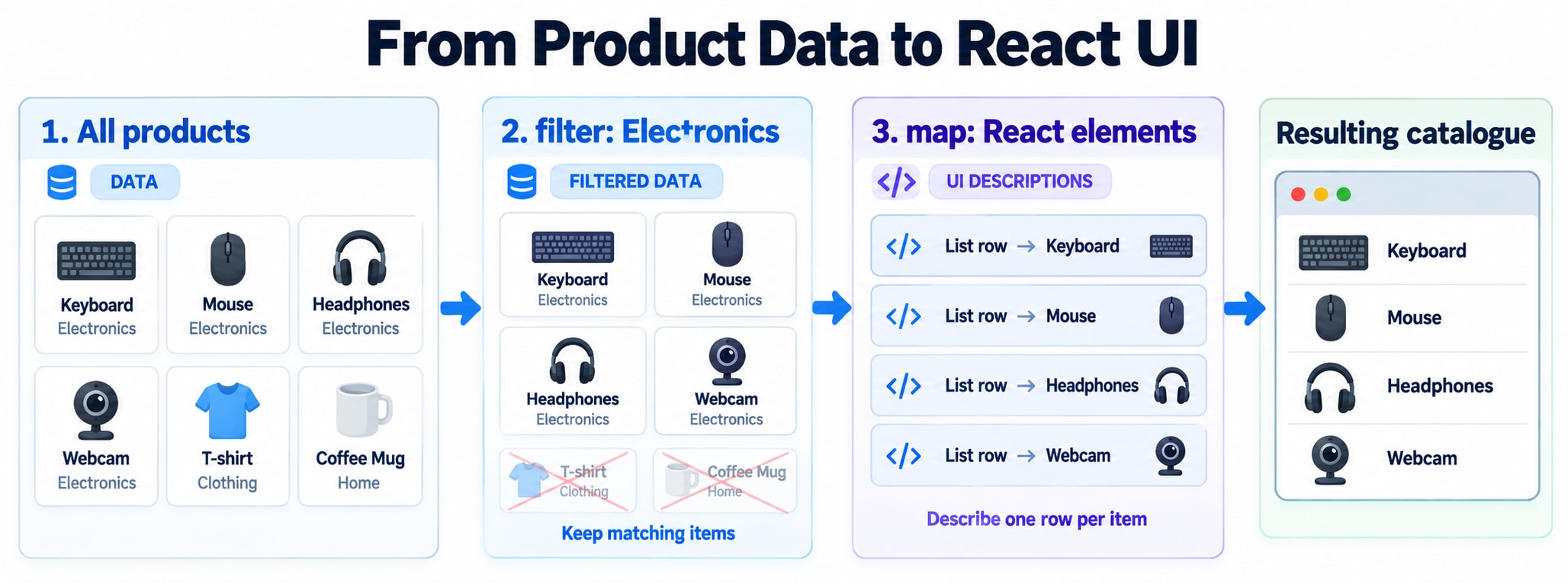
5. The summary should describe the same products as the list
The customer can now see four electronics products.
We want to display their combined listed price.
JavaScript’s reduce() method combines array items into one result:
const visibleTotal = visibleProducts.reduce(
  (total, product) => total + product.price,
  0
);
total is the accumulator: the result carried from one callback call to the next.
The final 0 is its starting value.
Step | Calculation | New total |
|---|---|---|
Start | Initial value | 0 |
Keyboard | 0 + 20 | 20 |
Mouse | 20 + 15 | 35 |
Headphones | 35 + 50 | 85 |
Webcam | 85 + 40 | 125 |
Now we can display:
<p>
  Combined listed price of visible products: ${visibleTotal}
</p>
This is not a checkout total. It adds one listed price per visible product, without quantities, delivery, or taxes.
That label matters: the calculation and the interface should describe the same thing.
Why provide an initial value?
An empty selection should produce a total of 0.
With an explicit initial value, it does:
[].reduce((total, product) => total + product.price, 0);
// 0
Without an initial value, reducing an empty array throws an error. With a nonempty array, the first item becomes the initial accumulator—which would be a product object in this example.
Also, the “one result” from reduce() does not have to be a number. It can be an object, array, or another value.
6. A promotion changes the displayed prices
The shop introduces a 10% discount for products priced above $20.
We first select eligible products, then calculate their sale prices:
const discountedProducts = products
  .filter(product => product.price > 20)
  .map(product => ({
    ...product,
    salePrice: product.price * 0.9,
  }));
The ...product syntax copies the product’s properties into a new object. We add salePrice while preserving the original listed price.
For a $30 product:
const discountAmount = 30 * 0.1; // 3
const salePrice = 30 - discountAmount; // 27
The discount amount is $3. The final price is $27.
To format displayed prices consistently:
const money = new Intl.NumberFormat("en-US", {
  style: "currency",
  currency: "USD",
});
Then render:
<ul>
  {discountedProducts.map(product => (
    <li key={product.id}>
      {product.name}:{" "}
      <del>{money.format(product.price)}</del>{" "}
      <strong>{money.format(product.salePrice)}</strong>
    </li>
  ))}
</ul>
Formatting controls presentation. A production checkout still needs an explicit calculation and rounding policy; displaying two decimal places does not establish one.
7. Categories should appear only once
The category selector needs two options: Electronics and Clothing.
Mapping the product categories produces duplicates:
const categories = products.map(product => product.category);[
"Electronics",
"Clothing",
"Electronics",
"Clothing",
"Electronics",
"Electronics"
]A JavaScript Set stores unique values:
const uniqueCategories = [
  ...new Set(products.map(product => product.category)),
];
The outer spread syntax turns the Set back into an array.
We can render the options:
{uniqueCategories.map(category => (
  <option key={category} value={category}>
    {category}
  </option>
))}
Using the category string as a key works here because these strings are unique within this list.
You may also encounter:
categories.filter(
  (category, index) => categories.indexOf(category) === index
);
This retains each value’s first occurrence. However, repeatedly searching the array can require quadratic work as the input grows. A Set expresses this particular intention more directly.
A Set does not merge different objects merely because they contain identical fields. For product objects, deduplication needs an explicit identity rule such as product.id.
8. The next search returns nothing
The customer searches for a product that does not exist.
An empty <ul> is technically valid, but it gives little feedback. We want a message instead.
React uses ordinary JavaScript conditions to choose UI.
Use if for a whole rendering branch
function ProductList({ products }) {
  if (products.length === 0) {
    return <p>No products match your filters.</p>;
  }

  return (
    <ul>
      {products.map(product => (
        <li key={product.id}>{product.name}</li>
      ))}
    </ul>
  );
}
Use a ternary when choosing between two values
The conditional—or ternary—operator has this structure:
condition ? valueWhenTrue : valueWhenFalseInside JSX:
{visibleProducts.length === 0 ? (
  <p>No products match your filters.</p>
) : (
  <ProductList products={visibleProducts} />
)}
Use && for an optional addition
{isSaleActive && <p>Selected products are on sale.</p>}There is no special React conditional language here. JavaScript evaluates the expression, and React receives its result.
9. Why did a mysterious zero appear?
A developer shortens the condition:
{visibleProducts.length && (
  <ProductList products={visibleProducts} />
)}
When there are no products, a 0 appears on the page.
The reason is that && does not always return a Boolean.
It returns the left operand if that operand is falsy; otherwise, it evaluates and returns the right operand:
0 && "Show products"; // 0
4 && "Show products"; // "Show products"
React renders the number 0. Values such as false, null, and undefined produce no visible child content.
Make the condition explicitly Boolean:
{visibleProducts.length > 0 && (
  <ProductList products={visibleProducts} />
)}
Now the empty-list result is false, so there is no stray zero.
The same care applies to conditions involving prices, quantities, and scores.
10. A free product exposes the wrong fallback
The shop adds a free digital guide:
const product = {
  id: "p7",
  name: "Getting Started Guide",
  price: 0,
};
Someone writes:
<p>{product.price || "Price unavailable"}</p>The page claims the price is unavailable.
JavaScript considers 0 falsy: it behaves like false when evaluated as a condition. Logical OR, ||, returns its right operand when the left operand is falsy.
But zero is a valid price.
The nullish coalescing operator, ??, uses the fallback only for null or undefined.
0 || "Unavailable"; // "Unavailable"
0 ?? "Unavailable"; // 0
| Input value | value || "Fallback" | value ?? "Fallback" |
|---|---|---|
| 0 | "Fallback" | 0 |
| false | "Fallback" | false |
| "" | "Fallback" | "" |
| null | "Fallback" | "Fallback" |
| undefined | "Fallback" | "Fallback" |
Use the operator that matches the meaning of the data.
For a price, preserve zero. For a display name, the product requirements might deliberately treat an empty string as missing.
Both operators short-circuit: they evaluate the fallback only when needed.
A clear price display might be:
<p>
  {product.price === null || product.price === undefined
    ? "Price unavailable"
    : money.format(product.price)}
</p>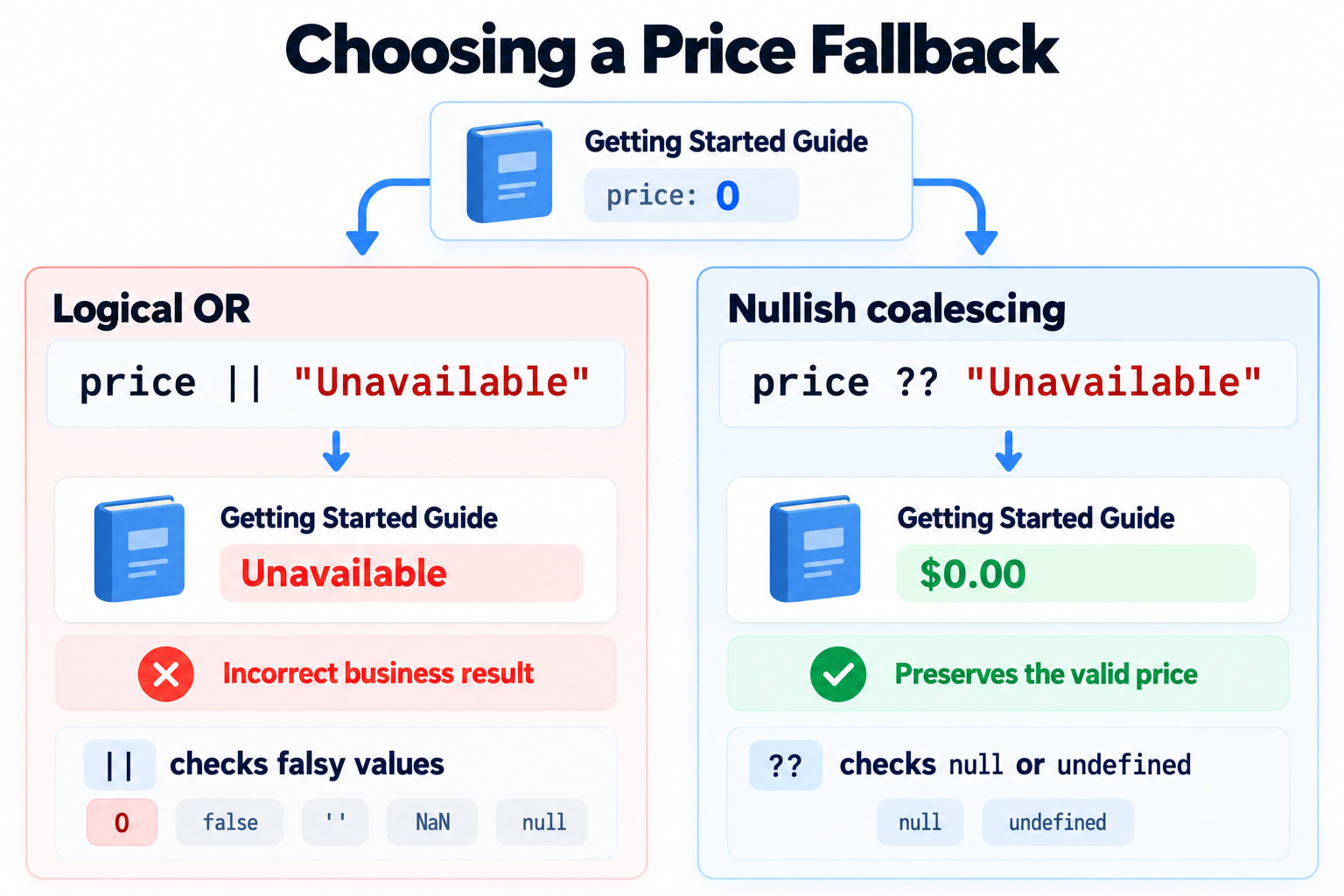
11. Some seller information is missing
A product may contain seller information:
const product = {
  name: "Keyboard",
  seller: {
    name: "North Store",
    address: {
      city: "Delhi",
    },
  },
};
But another product might not have an address.
This access can throw:
product.seller.address.cityIf address is undefined, JavaScript cannot read its city.
Optional chaining, ?., stops a property access chain when the value immediately before an optional access is null or undefined:
product.seller?.address?.cityIf the seller or address is absent, the expression produces undefined.
Combine it with a fallback:
<p>
  Ships from: {product.seller?.address?.city ?? "Location unavailable"}
</p>
Each operator has a separate job:
?.handles an absent value during property access.??chooses a fallback for the final nullish result.
Optional chaining does not validate your data
Consider:
response.products?.map(renderProduct)This handles products being nullish. It does not guarantee that a non-nullish products value is an array. An unexpected object or string can still cause a failure.
Optional chaining also does not catch arbitrary exceptions. Use it for genuinely optional data, and validate required API structure where that data enters the application.
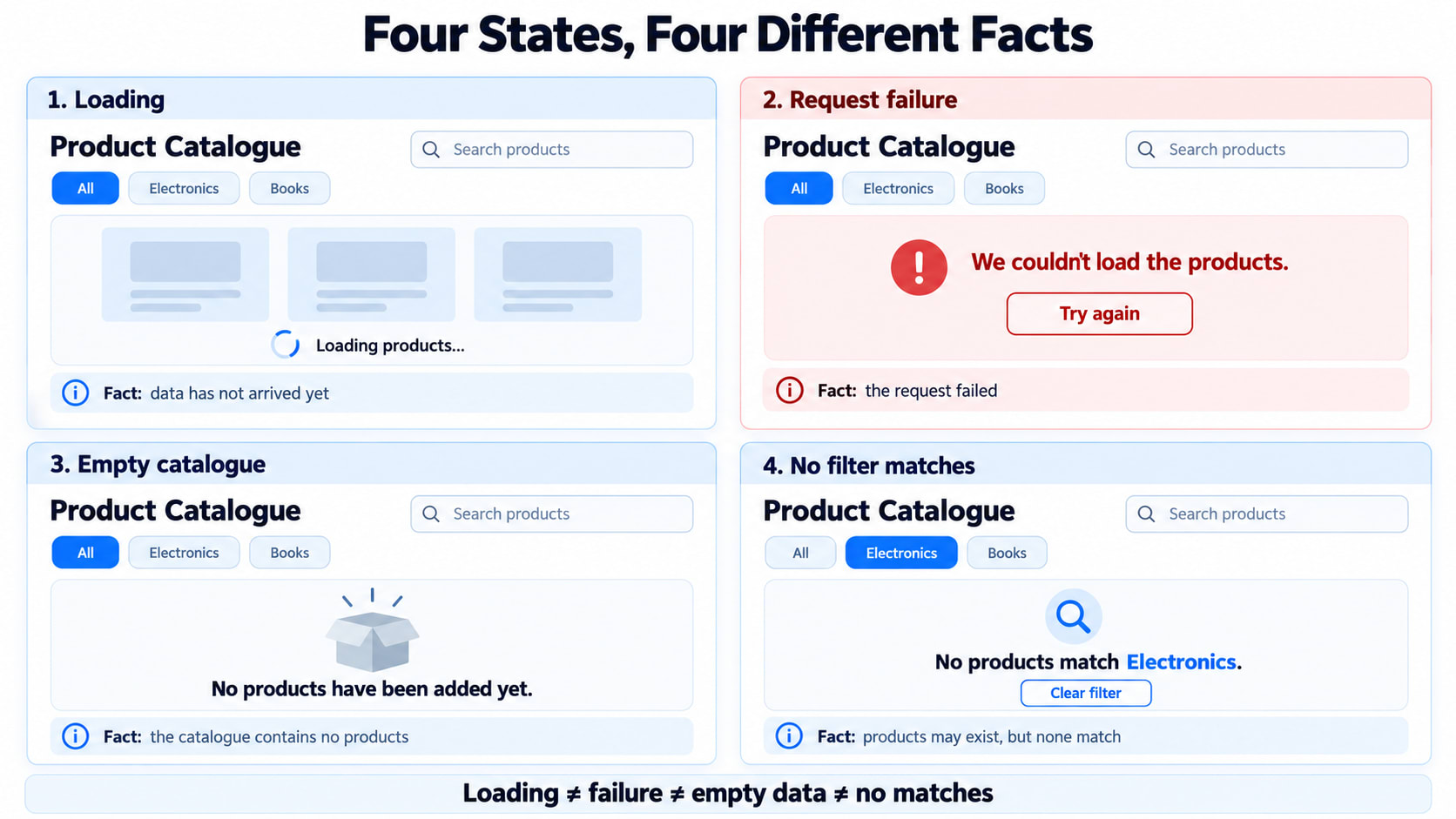
12. Loading, failure, and an empty catalogue are different states
Our server request has not finished yet.
Should we show “No products found”?
No—that message describes a completed result with no products. We do not know the result yet.
Suppose a parent supplies a status value with one of three meanings: "loading", "error", or "success".
function CataloguePage({ status, products }) {
  if (status === "loading") {
    return <p role="status">Loading products…</p>;
  }

  if (status === "error") {
    return <p role="alert">We couldn’t load the products.</p>;
  }

  if (products.length === 0) {
    return <p>The catalogue is currently empty.</p>;
  }

  return <ProductCatalogue products={products} />;
}
Here, successful responses are expected to provide a validated product array.
Inside ProductCatalogue, another empty state can explain that products exist but none match the selected filter.
These states should communicate different facts:
Situation | Message |
|---|---|
Request in progress | Loading products… |
Request failed | We couldn’t load the products. |
Successful response contains no products | The catalogue is currently empty. |
Products exist, but the filter matches none | No products match this filter. |
Choosing a fallback is a product decision, not just a way to avoid an exception.
13. Put the decisions together
Our catalogue can now select a category, display matching products, and summarize their listed prices.
This component assumes products is a valid array with the shape introduced at the beginning of the chapter.
import { useState } from "react";

const money = new Intl.NumberFormat("en-US", {
  style: "currency",
  currency: "USD",
});

export default function ProductCatalogue({ products }) {
  const [category, setCategory] = useState("");

  const categories = [
    ...new Set(products.map(product => product.category)),
  ];

  const visibleProducts = products.filter(product => (
    category === "" || product.category === category
  ));

  const visibleTotal = visibleProducts.reduce(
    (total, product) => total + product.price,
    0
  );

  return (
    <section>
      <h2>Product catalogue</h2>

      <label>
        Category{" "}
        <select
          value={category} => setCategory(event.target.value)}
        >
          <option value="">All categories</option>

          {categories.map(item => (
            <option key={item} value={item}>
              {item}
            </option>
          ))}
        </select>
      </label>

      <p>{visibleProducts.length} products shown</p>

      {visibleProducts.length === 0 ? (
        <p>No products match this filter.</p>
      ) : (
        <>
          <ul>
            {visibleProducts.map(product => (
              <li key={product.id}>
                <strong>{product.name}</strong>
                {" — "}
                {money.format(product.price)}
                {" — "}
                {product.category}
              </li>
            ))}
          </ul>

          <p>
            Combined listed price: {money.format(visibleTotal)}
          </p>
        </>
      )}
    </section>
  );
}
useState remembers the selected category. The empty string represents “All categories” in this example.
When the selection changes, setCategory requests an update. On the next render, the component calculates the matching products and their total from the current inputs.
We store the user’s selection. We calculate the list and total from that selection rather than maintaining separate copies that could become inconsistent.
14. What changes when the catalogue becomes large?
The same code may remain correct while becoming too expensive.
There are several distinct costs:
Selecting and transforming data.
Calculating component output.
Reconciling many rows.
Maintaining and displaying many DOM elements.
A filter() followed by a map() makes separate passes. For ordinary linear callbacks, that is still linear overall; two passes do not automatically mean a performance problem.
Start with clear code and measure the actual bottleneck.
If computation is expensive and inputs often remain unchanged, caching a calculation may help. If thousands of rows are mounted, pagination or virtualization—rendering only the relevant visible portion—may matter more.
Avoid changing the input while preparing the output
Sorting is an easy trap:
// Changes the original array.
products.sort((a, b) => a.price - b.price);
Copy before sorting:
const sortedProducts = [...products].sort(
  (a, b) => a.price - b.price
);
Or use toSorted() where supported:
const sortedProducts = products.toSorted(
  (a, b) => a.price - b.price
);
Both approaches create a different array order without reordering the original array. The product objects themselves are still shared references.
Removing a row also affects its state
If filtering removes a row from the rendered tree, React unmounts it. Local state in that row is discarded.
When the product appears again later, using the same key does not restore that discarded state.
If product notes must survive filtering, store them in a parent or another appropriate store, indexed by product ID. Keys preserve identity among continuing children; they are not a cache for removed components.
What this catalogue taught us
Our application began with six product objects.
We used map() to describe rows, filter() to choose visible products, and reduce() to calculate a summary. Stable keys connected each row to its identity.
Then the edge cases arrived.
An empty list needed an explanation. A free product revealed the difference between falsy and missing. Optional seller data required careful property access. A pending request needed its own state.
The useful questions to ask while writing this code are:
What does this value mean?
Which items belong in the current view?
What identity should survive an update?
Is this data missing, or is it a valid zero or empty value?
Does the message accurately describe the application’s state?
Am I calculating a new result or accidentally modifying the input?
Answering those questions makes lists and conditions reliable as the interface grows.