JavaScript Arrays: Complete Tutorial on Map, Filter, Reduce, Slice & Splice
The Story: A Shopping Cart With Unlimited Compartments
Imagine you're building an e-commerce application.
A customer visits your website and starts adding products to their shopping cart. Initially, there's a laptop. Then a mouse, a keyboard, and perhaps a monitor.
How would you store all these products?
You could create separate variables:
const product1 = "Laptop";
const product2 = "Mouse";
const product3 = "Keyboard";
But what happens when the customer adds 100 products? Creating separate variables would quickly become impractical.
Instead, JavaScript provides arrays.
const cart = ["Laptop", "Mouse", "Keyboard"];Now all products live inside one collection. You can add new products, remove existing ones, search for something, transform the data, or calculate the total price.
That's the real purpose of arrays: managing collections of related data efficiently.

1. Understanding JavaScript Arrays
An array is an ordered, zero-indexed, resizable collection that can store multiple values, including different data types.
const data = [
  "Laptop",
  1200,
  true,
  { category: "Electronics" },
  ["Mouse", "Keyboard"]
];

console.log(data[0]); // Laptop
console.log(data[3].category); // Electronics
console.log(data.length); // 5
Unlike traditional fixed-size arrays in languages such as C, JavaScript arrays can grow and shrink dynamically.
Arrays are special objects
One interesting thing about JavaScript arrays is that they are actually objects.
const fruits = ["Apple", "Banana", "Mango"];

console.log(typeof fruits); // "object"
console.log(Array.isArray(fruits)); // true
Arrays inherit their methods from Array.prototype, which provides methods such as map(), filter(), push(), and sort().
Understanding indexing
Every array element has an index starting from zero.
const fruits = ["Apple", "Banana", "Mango"];

console.log(fruits[0]); // Apple
console.log(fruits[1]); // Banana
console.log(fruits[2]); // Mango
You can also modify an element directly:
fruits[1] = "Orange";

console.log(fruits);
// ["Apple", "Orange", "Mango"]
Understanding the length property
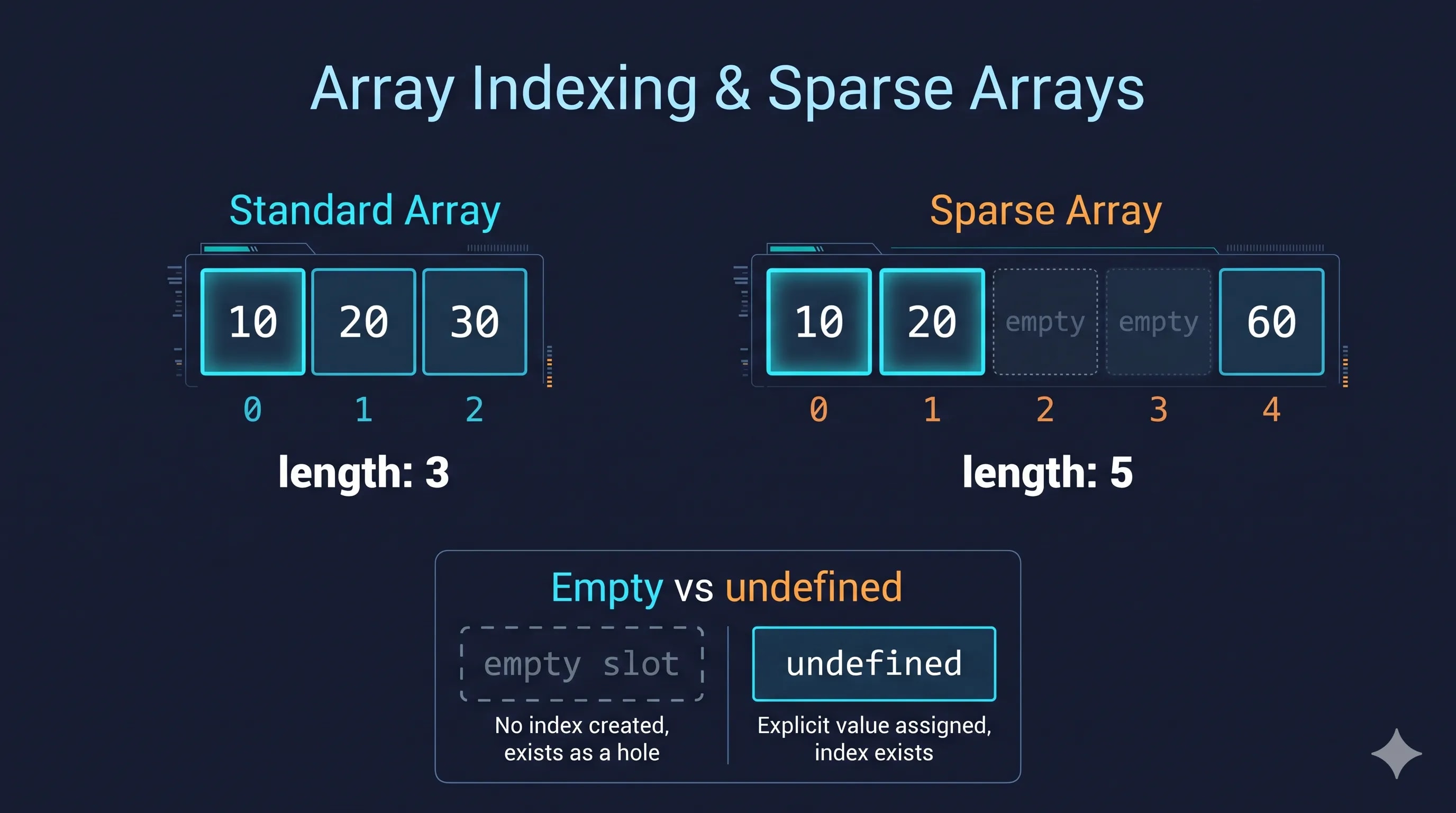
The length property returns one greater than the highest existing array index, or zero if there are no indexed elements.
const numbers = [10, 20, 30];

console.log(numbers.length); // 3

numbers[5] = 60;

console.log(numbers.length); // 6
console.log(numbers);
// [10, 20, 30, <2 empty items>, 60]
Notice that JavaScript didn't automatically fill the missing positions. It created holes.
Sparse arrays vs undefined
These two arrays might look similar, but they are different.
const a = new Array(3);

const b = [undefined, undefined, undefined];

console.log(0 in a); // false
console.log(0 in b); // true
A hole means the array doesn't have a property at that index. An undefined element means the property exists but its value is undefined.
2. How JavaScript Engines Optimize Arrays
You might imagine an array as a continuous row of memory slots. While this can be a useful mental model, JavaScript engines don't have to store arrays in one particular physical layout.
Let's look at Google's V8 engine, which powers Chrome and Node.js.
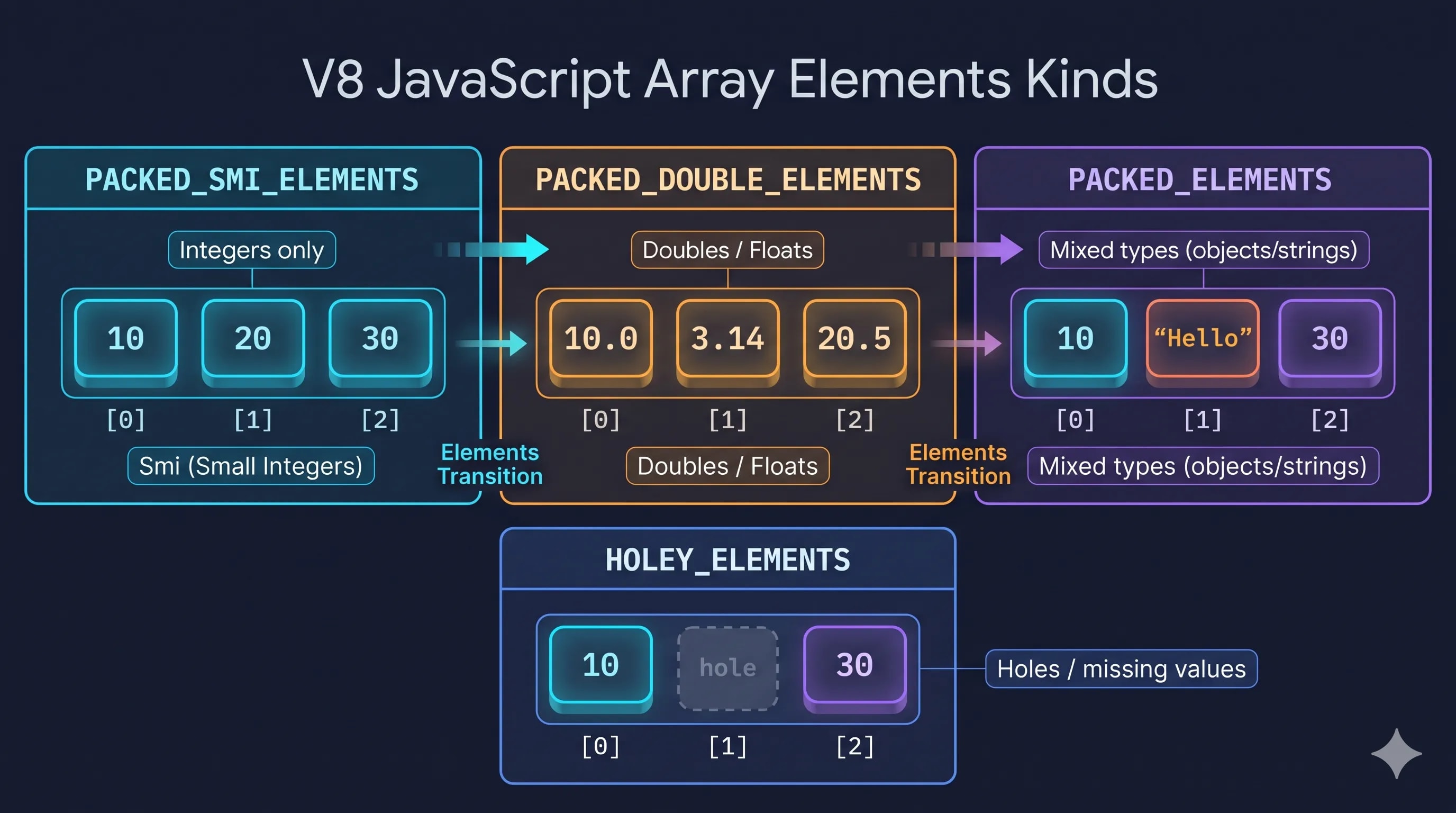
V8 uses internal representations called Elements Kinds to optimize array operations.
Imagine this array:
const numbers = [10, 20, 30];Since it contains small integers, V8 may represent it internally as:
PACKED_SMI_ELEMENTS
Now add a decimal:
numbers.push(3.14);V8 may transition to:
PACKED_DOUBLE_ELEMENTS
Now add a string:
numbers.push("Hello");It may transition to:
PACKED_ELEMENTS
Here are the important representations:
Elements kind | Meaning |
|---|---|
| Small integers |
| Floating-point numbers |
| General JavaScript values |
| Arrays containing holes |
Why does this matter?
Packed arrays are generally easier for V8 to optimize. Sparse arrays and unnecessary changes in element representation can reduce optimization opportunities.
V8 can also use dictionary-style storage for sufficiently sparse arrays.
Interview note: These are V8 implementation details, not guarantees of the JavaScript language specification. Other JavaScript engines may use different internal strategies.
3. Mutation vs Immutability
Before learning individual array methods, we need to understand one important concept: mutation.
Imagine a customer has a cart containing three products.
const cart = ["Laptop", "Mouse", "Keyboard"];If you add another product directly to this array, you modify the original array. This is called mutation.
cart.push("Monitor");

console.log(cart);
// ["Laptop", "Mouse", "Keyboard", "Monitor"]
But what if you want to create another version of the cart without changing the original?
That's where immutability comes in.
const cart = ["Laptop", "Mouse", "Keyboard"];

const updatedCart = [...cart, "Monitor"];

console.log(updatedCart);
// ["Laptop", "Mouse", "Keyboard", "Monitor"]

console.log(cart);
// ["Laptop", "Mouse", "Keyboard"]
The original array remains unchanged.
Mutating vs non-mutating methods
Mutating methods | Non-mutating alternatives |
|---|---|
|
|
|
|
|
|
|
|
|
|
|
|
|
|
Other methods such as map(), filter(), slice(), and concat() also return new arrays.

The shallow copy problem
There is one important detail: creating a new array doesn't automatically create copies of its nested objects.
const users = [
  { name: "Alex" },
  { name: "John" }
];

const copiedUsers = [...users];

copiedUsers[0].name = "David";

console.log(users[0].name);
// David
Why did the original array change?
Because spread syntax creates a shallow copy. The outer array is new, but the nested objects are still shared.
For supported data types, you can use structuredClone() to create a deep copy.
const copiedUsers = structuredClone(users);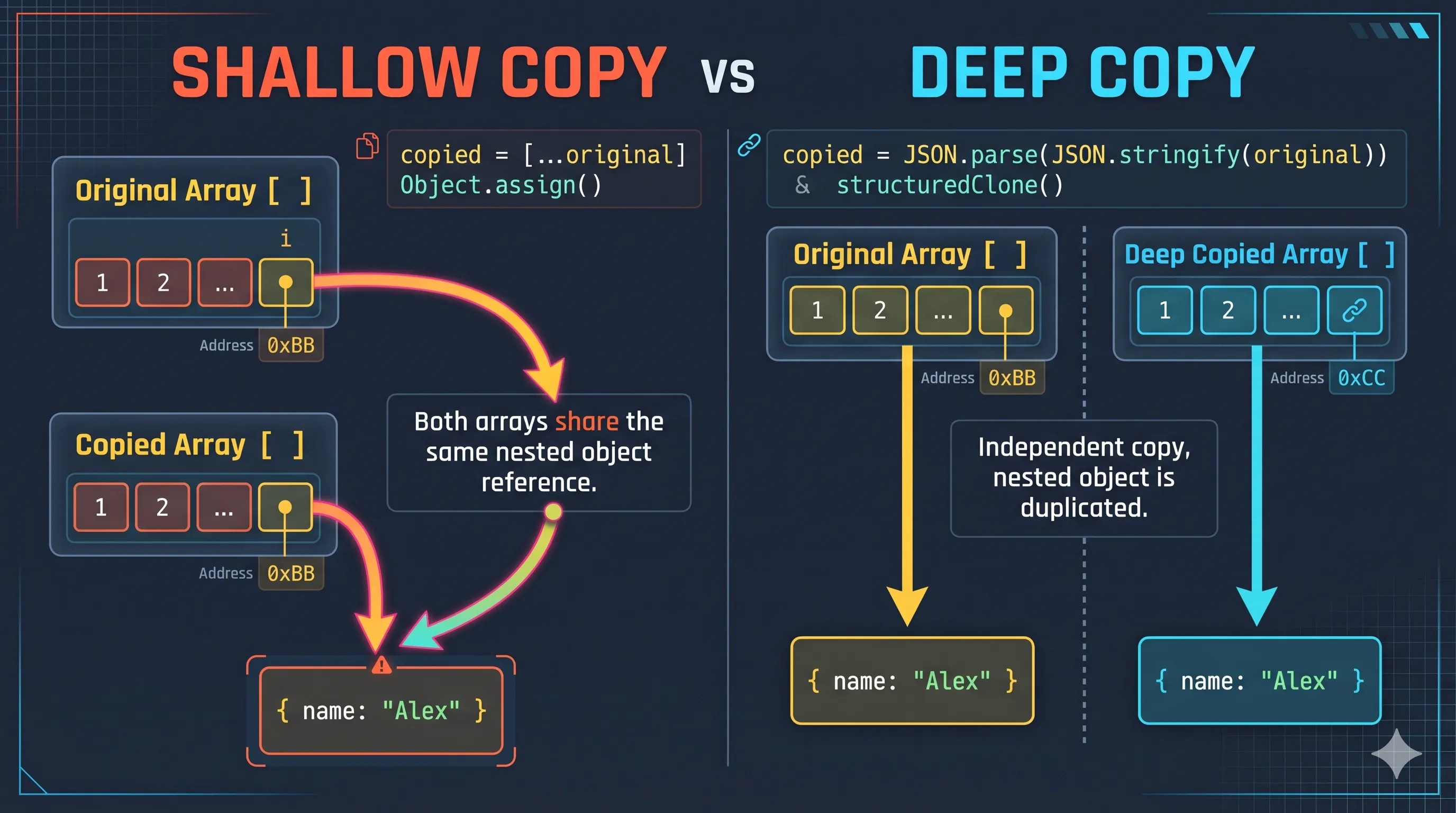
Interview takeaway: In React and Redux, avoid mutating existing state. Creating a new outer array is important, but you must also avoid modifying nested objects shared with the previous state.
4. Adding and Removing Elements
Let's return to our shopping cart.
A customer might add a new product, remove the last product, or remove the first product.
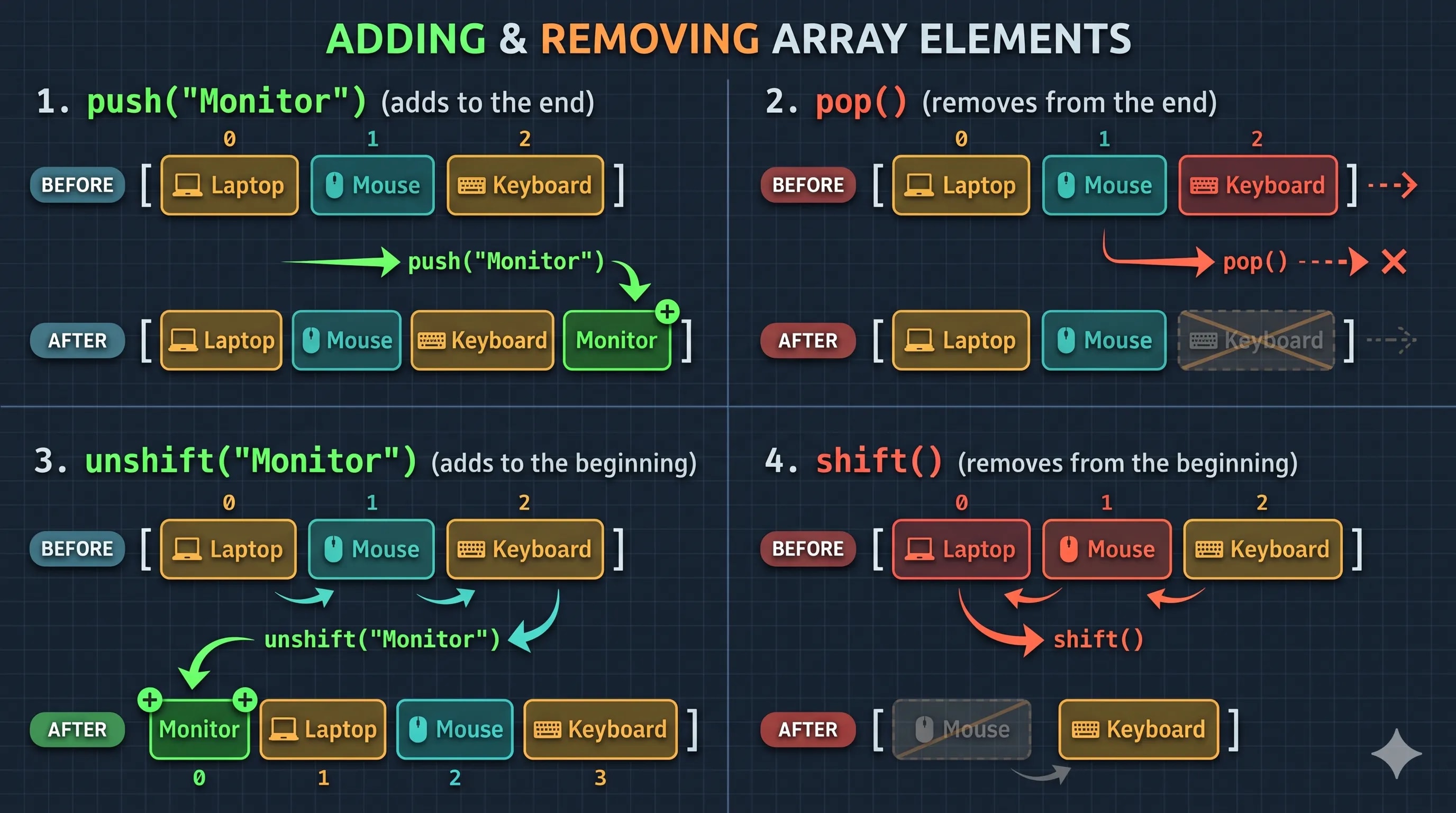
JavaScript provides four basic methods for these operations.
push() — Add elements at the end
const cart = ["Laptop", "Mouse"];

const length = cart.push("Keyboard");

console.log(cart);
// ["Laptop", "Mouse", "Keyboard"]

console.log(length); // 3
Adds one or more elements at the end.
Mutates the original array.
Returns the new array length.
Typical complexity: O(1) amortized for a single append.
You can add multiple elements at once:
cart.push("Monitor", "Speaker");pop() — Remove the last element
const cart = ["Laptop", "Mouse", "Keyboard"];

const removed = cart.pop();

console.log(removed); // Keyboard
console.log(cart); // ["Laptop", "Mouse"]
Removes the last element.
Mutates the original array.
Returns the removed element.
Typically O(1).
unshift() — Add elements at the beginning
const cart = ["Mouse", "Keyboard"];

const length = cart.unshift("Laptop");

console.log(cart);
// ["Laptop", "Mouse", "Keyboard"]

console.log(length); // 3
Adds elements at the beginning.
Mutates the original array.
Returns the new length.
Typically O(n), because existing indices need adjusting.
shift() — Remove the first element
const cart = ["Laptop", "Mouse", "Keyboard"];

const removed = cart.shift();

console.log(removed); // Laptop
console.log(cart); // ["Mouse", "Keyboard"]
Removes the first element.
Mutates the original array.
Returns the removed element.
Typically O(n).
Quick revision
Method | Operation | Return value |
|---|---|---|
| Add at end | New length |
| Remove from end | Removed element |
| Add at beginning | New length |
| Remove from beginning | Removed element |
5. Searching and Finding Elements
Now imagine a customer wants to know whether a particular product exists in the cart.
You could write a loop, but JavaScript already provides methods for searching.
includes() — Check whether a value exists
const cart = ["Laptop", "Mouse", "Keyboard"];

console.log(cart.includes("Mouse")); // true
console.log(cart.includes("Monitor")); // false
Returns true or false.
It uses SameValueZero comparison, which means it can also find NaN.
console.log([NaN, 10].includes(NaN)); // trueindexOf() — Find the first matching index
const cart = ["Laptop", "Mouse", "Keyboard", "Mouse"];

console.log(cart.indexOf("Mouse")); // 1
console.log(cart.indexOf("Monitor")); // -1
Returns the first matching index or -1 if the value doesn't exist.
lastIndexOf() — Find the last matching index
const cart = ["Mouse", "Laptop", "Mouse"];

console.log(cart.lastIndexOf("Mouse")); // 2
Returns the last matching index or -1.
find() — Find the first matching element
What if you are working with objects instead of primitive values?
const products = [
  { name: "Laptop", price: 80000 },
  { name: "Mouse", price: 500 },
  { name: "Monitor", price: 12000 }
];

const product = products.find(item => item.price > 10000);

console.log(product);
// { name: "Laptop", price: 80000 }
Returns the first matching element or undefined.
findIndex() — Find the index of the first match
const products = [
  { name: "Laptop", price: 80000 },
  { name: "Mouse", price: 500 },
  { name: "Monitor", price: 12000 }
];

const index = products.findIndex(item => item.price > 10000);

console.log(index); // 0
Returns the matching index or -1.
findLast() — Find the last matching element
const prices = [100, 250, 400, 600];

const result = prices.findLast(price => price > 200);

console.log(result); // 600
findLastIndex() — Find the last matching index
const prices = [100, 250, 400, 600];

const index = prices.findLastIndex(price => price > 200);

console.log(index); // 3
Remember the difference:
Method | Returns |
|---|---|
| Boolean |
| First index |
| Last index |
| First matching element |
| First matching index |
| Last matching element |
| Last matching index |
Most of these methods perform a linear search and typically have O(n) complexity.
6. Iterating Over Arrays
Sometimes you don't want to search or transform an array. You simply want to visit every element.
JavaScript provides multiple ways to iterate over arrays.
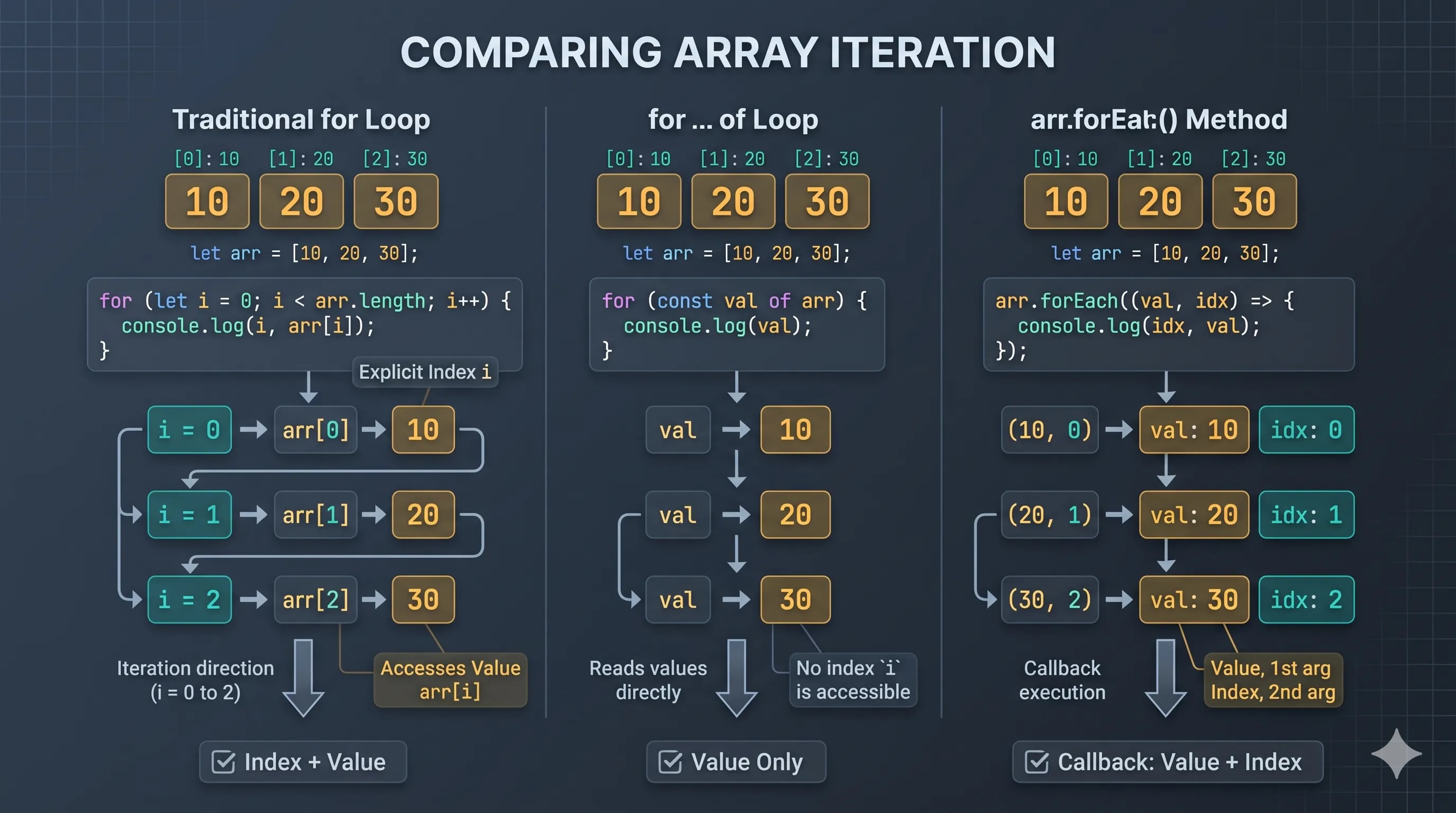
Traditional for loop
const products = ["Laptop", "Mouse", "Keyboard"];

for (let i = 0; i < products.length; i++) {
  console.log(products[i]);
}
You get complete control over the index, loop condition, and iteration.
for...of — Iterate over values
const products = ["Laptop", "Mouse", "Keyboard"];

for (const product of products) {
  console.log(product);
}
Useful when you only need the values.
You can also use break and continue.
for (const product of products) {
  if (product === "Mouse") break;

  console.log(product);
}
for...in — Iterate over enumerable keys
const products = ["Laptop", "Mouse", "Keyboard"];

for (const index in products) {
  console.log(index);
}
Output:
0
1
2
for...in iterates over enumerable property keys, not specifically array values.
It is generally better to avoid it for ordinary array iteration because additional enumerable properties can also be visited.
forEach() — Execute a callback for each element
const products = ["Laptop", "Mouse", "Keyboard"];

products.forEach((product, index) => {
  console.log(`${index}: ${product}`);
});
Output:
0: Laptop
1: Mouse
2: Keyboard
forEach() returns undefined.
It also doesn't provide normal break or continue behavior.
Which one should you use?
Approach | Best use |
|---|---|
| Full control over iteration |
| Iterating over values |
| Enumerating object keys |
| Executing a callback for each present element |
Interview insight: for...of and array methods such as forEach() handle array holes differently. for...of yields undefined for a hole, while forEach() skips it.
7. Transforming and Filtering Arrays
This is where arrays become especially powerful.
Imagine your e-commerce application has a list of products, and you want to:
Apply discounts to every product.
Display only products above a certain price.
Calculate the total cart value.
Instead of writing separate loops for everything, you can use higher-order array methods.
map() — Transform every element
Suppose you want to apply a 10% discount to every product.
const prices = [100, 200, 300];

const discounted = prices.map(price => price * 0.9);

console.log(discounted);
// [90, 180, 270]

console.log(prices);
// [100, 200, 300]
map() returns a new array containing the transformed values.
filter() — Select matching elements
Suppose you only want products costing at least ₹300.
const prices = [100, 200, 300, 400];

const expensive = prices.filter(price => price >= 300);

console.log(expensive);
// [300, 400]
filter() returns a new array containing all elements that pass the condition.
reduce() — Accumulate values into one result
Suppose you want to calculate the total price of all products.
const prices = [100, 200, 300];

const total = prices.reduce((sum, price) => {
  return sum + price;
}, 0);

console.log(total); // 600
Let's understand what happens:
Iteration | Accumulator | Current value | Result |
|---|---|---|---|
Initial | 0 | — | 0 |
1 | 0 | 100 | 100 |
2 | 100 | 200 | 300 |
3 | 300 | 300 | 600 |
The final result is 600.
The second argument, 0, is the initial accumulator value.
flat() — Flatten nested arrays
Imagine your application receives nested product categories.
const categories = [
  "Electronics",
  ["Laptop", "Mouse"],
  ["Keyboard", ["Monitor"]]
];

console.log(categories.flat());
// ["Electronics", "Laptop", "Mouse", "Keyboard", ["Monitor"]]
By default, flat() flattens one level.
You can specify the depth:
console.log(categories.flat(2));
// ["Electronics", "Laptop", "Mouse", "Keyboard", "Monitor"]
You can also flatten all levels:
categories.flat(Infinity);flat() returns a new array.
flatMap() — Map and flatten one level
Sometimes you want to transform each element into multiple elements and combine everything into one array.
const numbers = [1, 2, 3];

const result = numbers.flatMap(num => [num, num * 2]);

console.log(result);
// [1, 2, 2, 4, 3, 6]
It is equivalent to:
numbers.map(num => [num, num * 2]).flat();Remember: flatMap() only flattens one level.
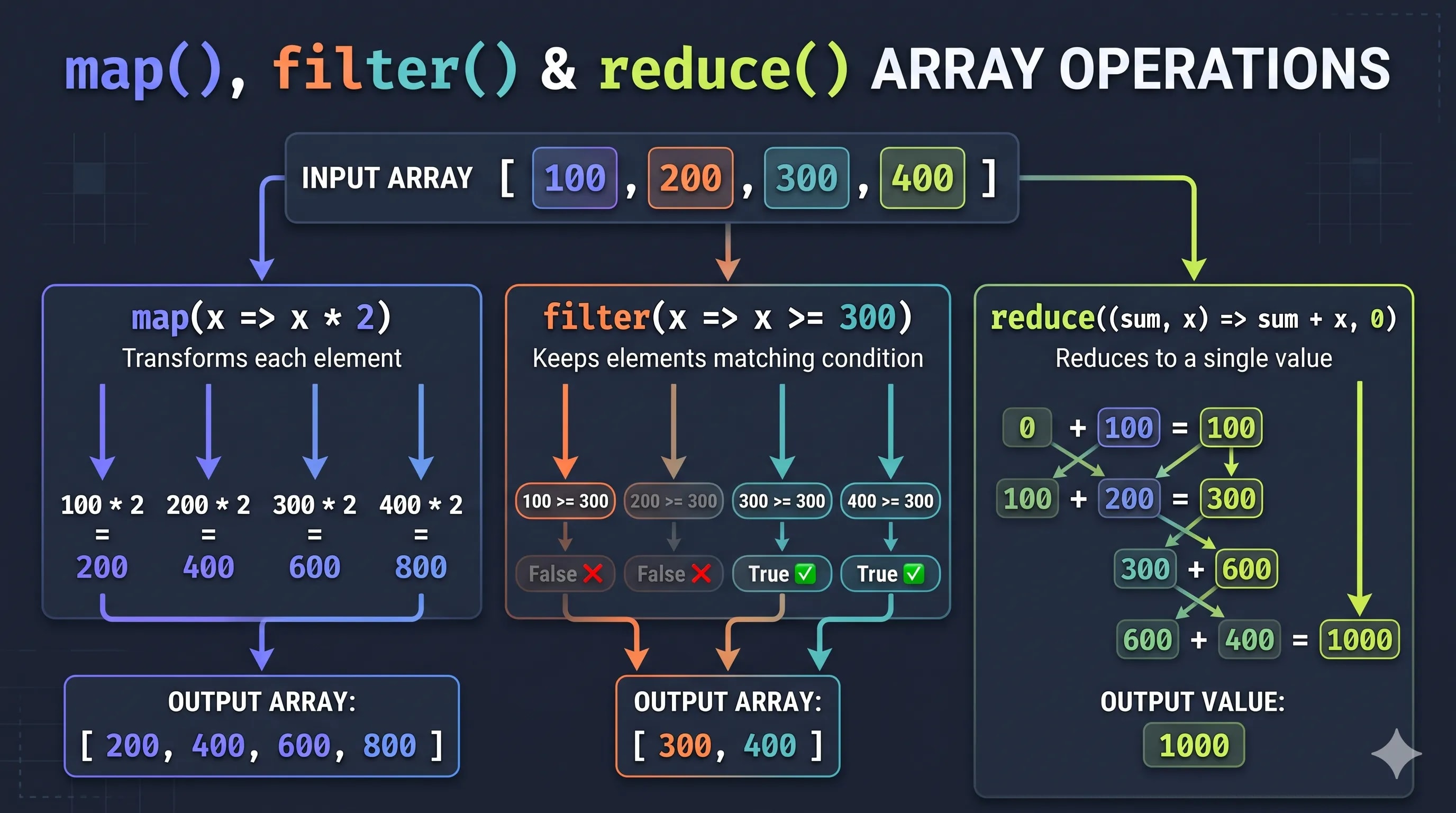
Quick comparison
Method | Purpose | Returns |
|---|---|---|
| Transform values | New array |
| Select values | New array |
| Accumulate values | Single result |
| Flatten nested arrays | New array |
| Transform and flatten | New array |
8. Checking Conditions in Arrays
Sometimes you don't need the matching element or a transformed array. You only need to know whether a condition is satisfied.
JavaScript provides two useful methods.
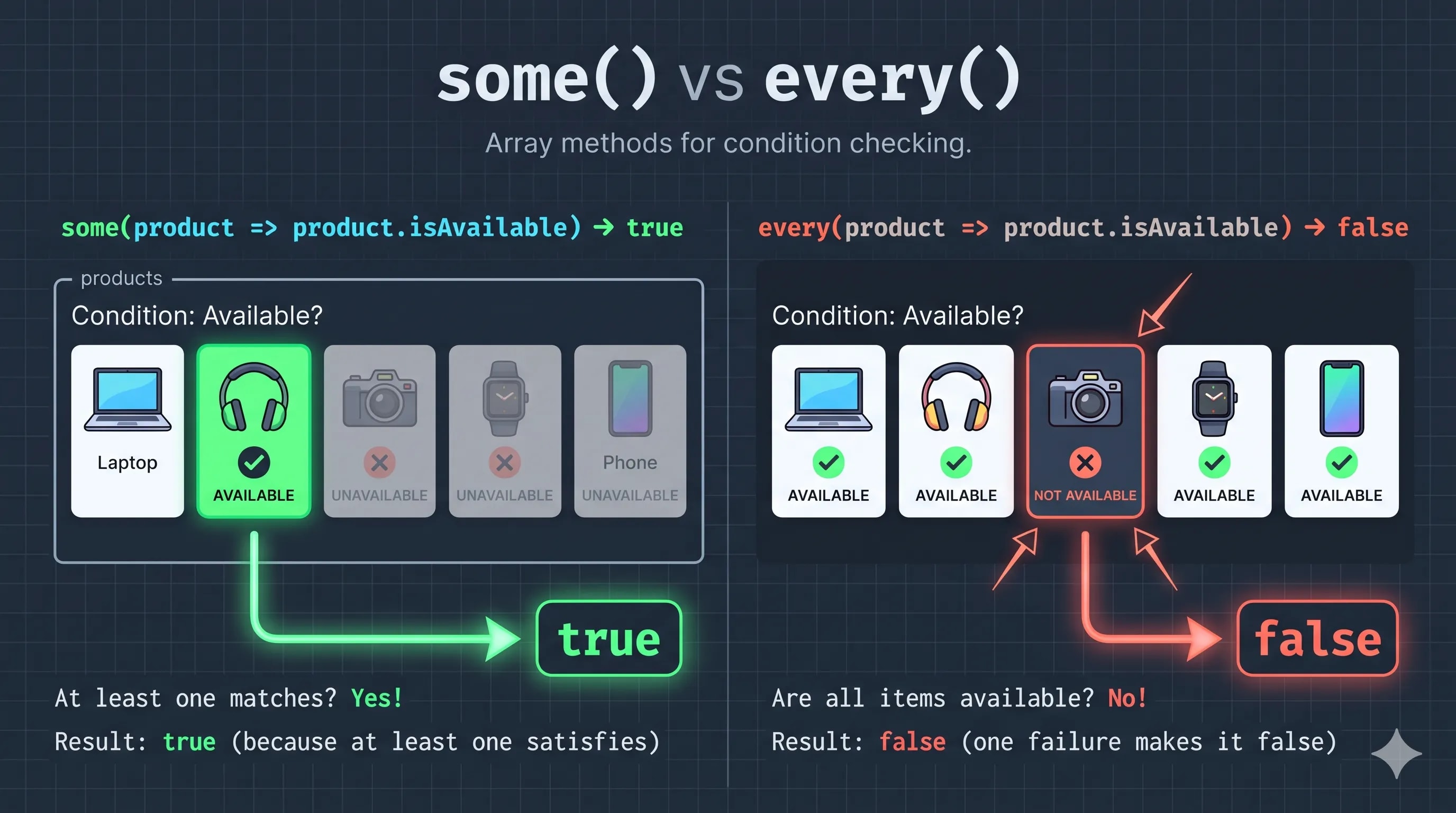
some() — Does at least one element match?
const prices = [100, 200, 900];

const hasExpensiveProduct = prices.some(price => price > 500);

console.log(hasExpensiveProduct); // true
It returns true if at least one element passes the condition.
every() — Do all elements match?
const prices = [100, 200, 300];

const allAffordable = prices.every(price => price < 500);

console.log(allAffordable); // true
It returns true only if every element passes the condition.
Important distinction:
const prices = [100, 200, 300];

console.log(prices.some(price => price > 200)); // true
console.log(prices.every(price => price > 200)); // false
Both methods return booleans and stop early when their result is determined.
One interesting edge case:
console.log([].some(x => x > 0));  // false
console.log([].every(x => x > 0)); // true
every() returns true for an empty array because there is no element that violates the condition.
9. Copying, Combining and Extracting Arrays
Suppose a customer wants to view only the first three products without changing the original cart.
Or perhaps you want to combine two different product lists.
JavaScript provides several methods for these operations.
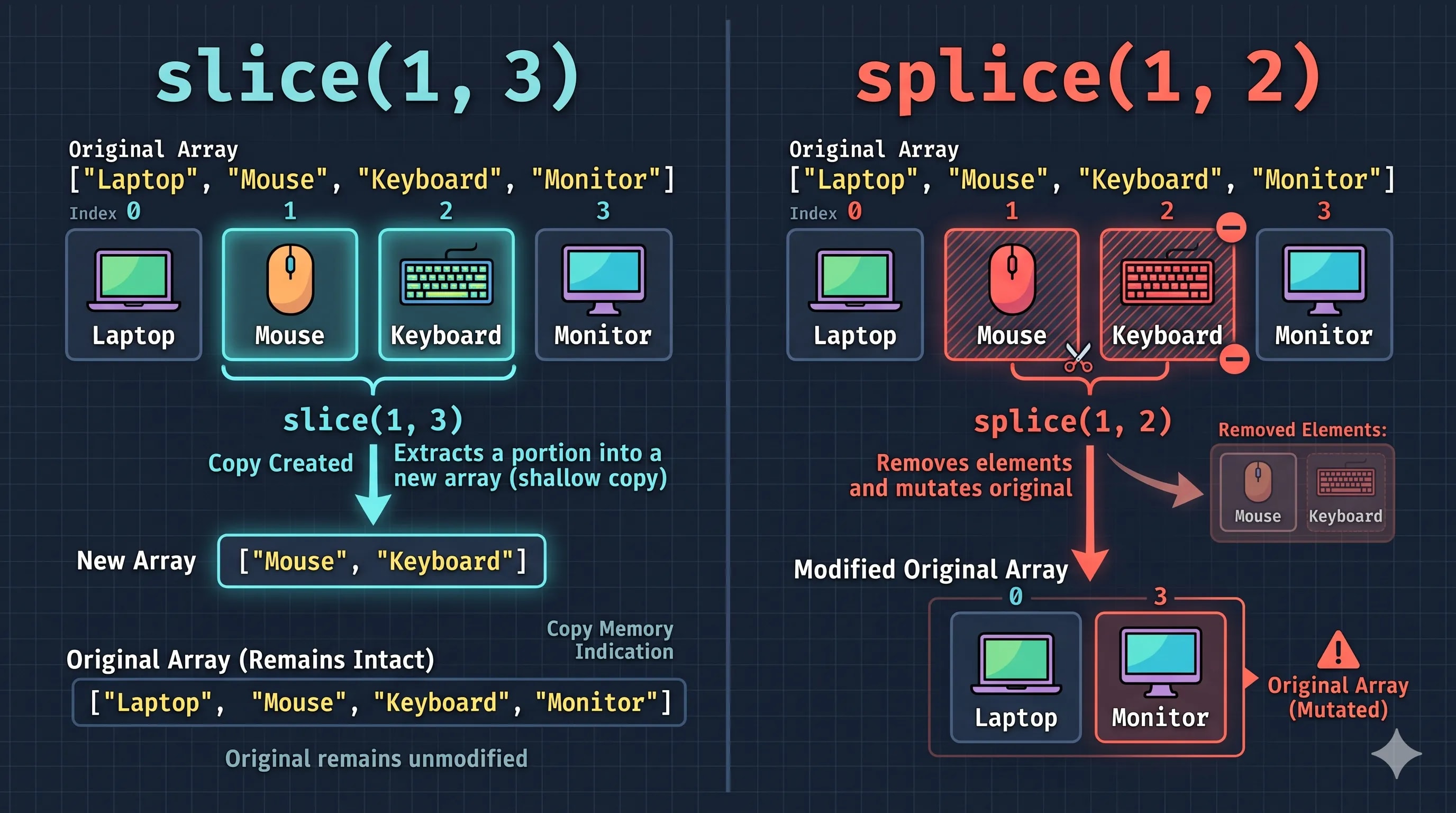
slice() — Extract a portion of an array
const cart = ["Laptop", "Mouse", "Keyboard", "Monitor"];

const selected = cart.slice(1, 3);

console.log(selected);
// ["Mouse", "Keyboard"]

console.log(cart);
// Original unchanged
Syntax:
array.slice(start, end);The end index is exclusive.
You can also use negative indices:
const numbers = [10, 20, 30, 40];

console.log(numbers.slice(-2));
// [30, 40]
concat() — Combine arrays
const electronics = ["Laptop", "Mouse"];
const accessories = ["Keyboard", "Monitor"];

const products = electronics.concat(accessories);

console.log(products);
// ["Laptop", "Mouse", "Keyboard", "Monitor"]
It returns a new array without modifying the original arrays.
Spread syntax — Copy and combine arrays
Spread syntax isn't an array method, but it is one of the most frequently used array features.
const a = [1, 2];
const b = [3, 4];

const copy = [...a];
const combined = [...a, ...b];

console.log(copy);     // [1, 2]
console.log(combined); // [1, 2, 3, 4]
You can also insert elements:
const updated = [0, ...a, 5];

console.log(updated);
// [0, 1, 2, 5]
Remember that spread creates a shallow copy.
10. Sorting and Reversing Arrays
Imagine your e-commerce application wants to display products from cheapest to most expensive.
You might try this:
const prices = [100, 5, 25, 2];

prices.sort();

console.log(prices);
// [100, 2, 25, 5]
Surprised?
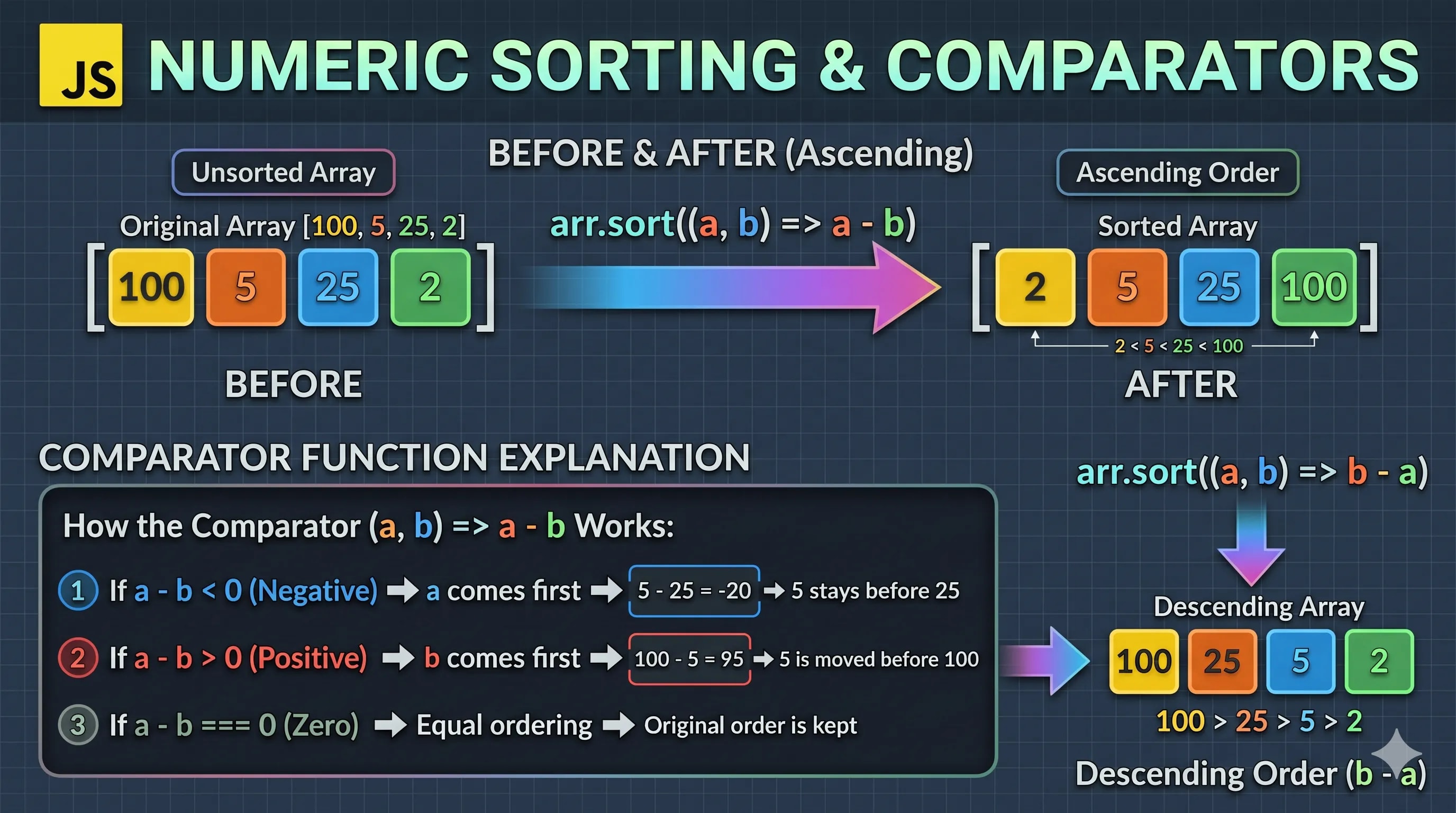
The default sort() method converts elements to strings and compares them using UTF-16 code units.
That's why numeric sorting requires a comparator.
sort() — Sort an array
Ascending order:
const prices = [100, 5, 25, 2];

prices.sort((a, b) => a - b);

console.log(prices);
// [2, 5, 25, 100]
Descending order:
prices.sort((a, b) => b - a);

console.log(prices);
// [100, 25, 5, 2]
How does the comparator work?
(a, b) => a - bThe comparator tells JavaScript which element should come first.
Negative result:
acomes beforeb.Positive result:
acomes afterb.Zero: their relative order is retained by the sorting algorithm.
JavaScript sorting is stable, meaning elements that compare equally preserve their relative order.
Important: sort() modifies the original array.
Sorting objects
You can also sort objects based on a property.
const products = [
  { name: "Laptop", price: 80000 },
  { name: "Mouse", price: 500 },
  { name: "Monitor", price: 12000 }
];

products.sort((a, b) => a.price - b.price);

console.log(products);
Now products are ordered from lowest to highest price.
reverse() — Reverse an array
const numbers = [1, 2, 3, 4];

numbers.reverse();

console.log(numbers);
// [4, 3, 2, 1]
reverse() modifies the original array.
11. Modern Non-Mutating Array Methods (ES2023)
We just learned that sort() and reverse() modify the original array.
But what if you want the same results without changing the original?
ES2023 introduced three useful methods.
toSorted() — Non-mutating sorting
const numbers = [30, 10, 20];

const sorted = numbers.toSorted((a, b) => a - b);

console.log(sorted);  // [10, 20, 30]
console.log(numbers); // [30, 10, 20]
toReversed() — Non-mutating reversing
const numbers = [1, 2, 3];

const reversed = numbers.toReversed();

console.log(reversed); // [3, 2, 1]
console.log(numbers);  // [1, 2, 3]
toSpliced() — Non-mutating insertion and removal
const numbers = [10, 20, 30, 40];

const updated = numbers.toSpliced(1, 2, 99);

console.log(updated); // [10, 99, 40]
console.log(numbers); // [10, 20, 30, 40]
These methods are particularly useful when working with immutable data patterns in React and Redux.
Mutating | Non-mutating |
|---|---|
|
|
|
|
|
|
12. The Most Confusing Method: splice()
We have already seen slice(), but another method has a very similar name: splice().
Suppose a customer wants to remove two products from the middle of their cart.
const cart = ["Laptop", "Mouse", "Keyboard", "Monitor"];

const removed = cart.splice(1, 2);

console.log(removed);
// ["Mouse", "Keyboard"]

console.log(cart);
// ["Laptop", "Monitor"]
Unlike slice(), splice() modifies the original array.
Its syntax:
array.splice(start, deleteCount, item1, item2);You can also insert elements without removing anything:
const cart = ["Laptop", "Mouse"];

cart.splice(1, 0, "Keyboard");

console.log(cart);
// ["Laptop", "Keyboard", "Mouse"]
Or replace existing elements:
const cart = ["Laptop", "Mouse", "Keyboard"];

cart.splice(1, 1, "Monitor");

console.log(cart);
// ["Laptop", "Monitor", "Keyboard"]
slice() vs splice()
|
|
|---|---|
Non-mutating | Mutating |
Extracts a portion | Adds, removes, or replaces |
Returns copied elements | Returns removed elements |
Uses start and end | Uses start and delete count |
Memory trick: slice() takes a slice of the array. splice() changes the original array.
13. Array Creation and Utility Methods
JavaScript also provides methods for creating arrays and performing common utility operations.
Array.isArray() — Check whether a value is an array
console.log(Array.isArray([1, 2, 3])); // true
console.log(Array.isArray({ a: 1 })); // false
console.log(Array.isArray("Hello")); // false
Useful because typeof returns "object" for arrays.
Array.from() — Create an array from an iterable or array-like object
const name = "HELLO";

const letters = Array.from(name);

console.log(letters);
// ["H", "E", "L", "L", "O"]
It also accepts a mapping function:
const numbers = Array.from(
  { length: 5 },
  (_, index) => index + 1
);

console.log(numbers);
// [1, 2, 3, 4, 5]
Array.of() — Create an array from arguments
console.log(Array.of(5));
// [5]

console.log(Array.of(1, 2, 3));
// [1, 2, 3]
Compare it with the array constructor:
console.log(Array(5));
// [empty × 5]

console.log(Array.of(5));
// [5]
This is an important interview distinction.
fill() — Fill an array with a value
const numbers = [1, 2, 3, 4];

numbers.fill(0, 1, 3);

console.log(numbers);
// [1, 0, 0, 4]
Syntax:
array.fill(value, start, end);It mutates the original array.
Be careful when filling arrays with objects:
const arr = Array(3).fill({ count: 0 });

arr[0].count = 10;

console.log(arr.map(item => item.count));
// [10, 10, 10]
All positions reference the same object.
Instead:
const arr = Array.from(
  { length: 3 },
  () => ({ count: 0 })
);
Now every position gets a separate object.
at() — Access elements using positive or negative indices
const fruits = ["Apple", "Banana", "Mango"];

console.log(fruits.at(0));  // Apple
console.log(fruits.at(-1)); // Mango
console.log(fruits.at(-2)); // Banana
Negative indices count backward from the end.
14. Common JavaScript Array Interview Traps
Let's put together some of the mistakes interviewers frequently test.
Trap 1: Array equality compares references
console.log([1, 2] === [1, 2]);
// false
Why?
Because arrays are objects, and object equality compares references rather than their contents.
const a = [1, 2];
const b = a;

console.log(a === b); // true
Both variables point to the same array.
Trap 2: const does not make an array immutable
const arr = [1, 2];

arr.push(3); // Allowed

arr = [4, 5]; // TypeError
const prevents reassignment, not modification of the array.
Trap 3: map() skips holes
const arr = [1, , 3];

const result = arr.map(num => num * 2);

console.log(result);
// [2, empty, 6]
Array iteration methods such as map(), filter(), and forEach() generally skip empty slots.
Trap 4: forEach() cannot be stopped with break
[1, 2, 3].forEach(num => {
  if (num === 2) return;

  console.log(num);
});

// 1
// 3
return exits only the current callback.
Use for...of when you need break or continue.
Trap 5: fill() can create shared references
const arr = Array(3).fill({ count: 0 });

arr[0].count = 10;

console.log(arr.map(item => item.count));
// [10, 10, 10]
Use Array.from() with a factory function when you need separate objects.
Trap 6: Default sorting is not numeric
console.log([10, 2, 25, 5].sort());
// [10, 2, 25, 5]
Always provide a numeric comparator when sorting numbers:
arr.sort((a, b) => a - b);Trap 7: Empty array with every()
console.log([].every(num => num > 0));
// true
This is intentional JavaScript behavior: no element violates the condition.
15. Array Time Complexity
Understanding the time complexity of array operations is important for interviews.
Operation | Typical complexity |
|---|---|
Access by index | O(1) |
Update by index | O(1) |
| O(1) amortized |
| O(1) |
| O(n) |
| O(n) |
| O(n) |
| O(n) |
| O(n) |
| O(n) |
| O(n) |
| O(n) |
| O(k), where k is copied elements |
| Typically O(n log n) |
These are typical expectations for ordinary dense arrays, not strict guarantees from the ECMAScript specification.
Why is accessing an element O(1), but searching O(n)?
When you access an element using its index:
const arr = [10, 20, 30, 40];

console.log(arr[2]); // 30
The engine can directly access the requested index.
But when searching:
arr.includes(40);The array generally needs to be checked element by element until the value is found or the search ends.
That's the difference between constant-time access and linear-time searching.
16. Putting Everything Together: Build a Shopping Cart
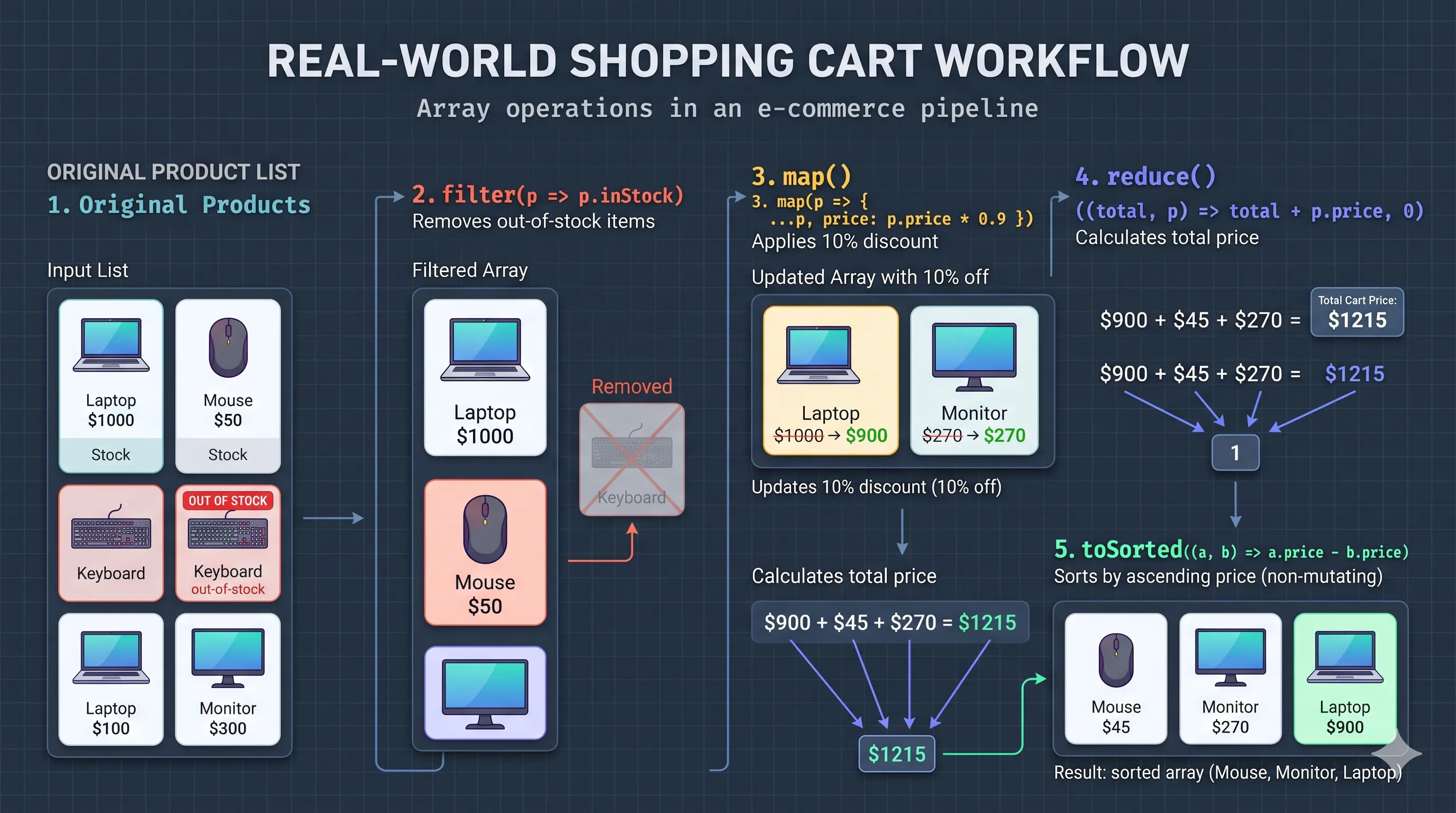
We have learned individual array methods. Now let's combine them in a realistic example.
Suppose an e-commerce application has the following products:
const products = [
  { name: "Laptop", price: 80000, stock: true },
  { name: "Mouse", price: 500, stock: true },
  { name: "Keyboard", price: 1500, stock: false },
  { name: "Monitor", price: 12000, stock: true }
];
Step 1: Get only available products
const availableProducts = products.filter(
  product => product.stock
);
Step 2: Apply a 10% discount
const discountedProducts = availableProducts.map(product => ({
  ...product,
  price: product.price * 0.9
}));
Step 3: Calculate the total price
const total = discountedProducts.reduce(
  (sum, product) => sum + product.price,
  0
);
Step 4: Sort products by price
const sortedProducts = discountedProducts.toSorted(
  (a, b) => a.price - b.price
);
Step 5: Find a particular product
const laptop = sortedProducts.find(
  product => product.name === "Laptop"
);
The complete workflow demonstrates how filter(), map(), reduce(), toSorted(), and find() work together in real applications.
17. Quick Revision — JavaScript Arrays Cheat Sheet
Array fundamentals
Arrays are special objects.
Indexing starts at zero.
lengthis one greater than the highest existing array index.Arrays can contain mixed data types.
Sparse arrays contain missing indices.
Adding and removing
push()— Add at the end.pop()— Remove from the end.unshift()— Add at the beginning.shift()— Remove from the beginning.splice()— Insert, remove, or replace.
Searching
includes()— Check existence.indexOf()— First matching index.lastIndexOf()— Last matching index.find()— First matching element.findIndex()— First matching index.findLast()— Last matching element.findLastIndex()— Last matching index.
Iteration
for— Full control.for...of— Iterate values.for...in— Enumerate keys.forEach()— Execute callback for each present element.
Transformation
map()— Transform.filter()— Select.reduce()— Accumulate.flat()— Flatten.flatMap()— Map and flatten one level.
Conditions
some()— At least one matches.every()— All match.
Copying and combining
slice()— Extract a portion.concat()— Combine arrays.Spread syntax — Copy and combine.
Sorting
sort()— Sort original.reverse()— Reverse original.toSorted()— Non-mutating sort.toReversed()— Non-mutating reverse.toSpliced()— Non-mutating splice.
Creation and utilities
Array.isArray()— Check array type.Array.from()— Create from iterable or array-like data.Array.of()— Create from arguments.fill()— Fill with a value.at()— Access using negative indices.
Most important interview concepts
Mutation vs immutability.
Shallow copy vs deep copy.
Reference equality.
Sparse arrays vs
undefined.slice()vssplice().Default
sort()behavior.map()vsforEach().some()vsevery().